
Bill Center: How to update or delete a biller
This article covers steps for the updated Bill Center experience. If you are still using the previous version of Bill Pay, go to Bill Pay: How to update or delete payee.
This article covers the following topics:
Mobile
If you're using a mobile device, follow the steps below. For computers, go to the desktop steps
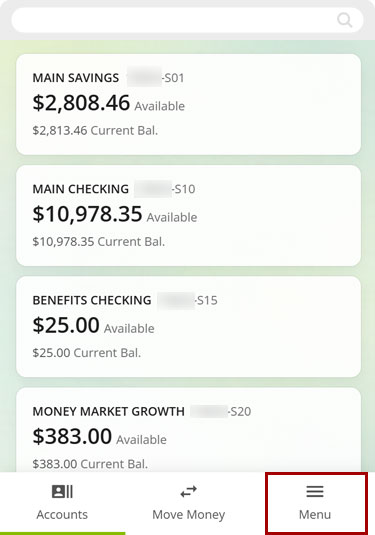
At bottom right, select the Menu.
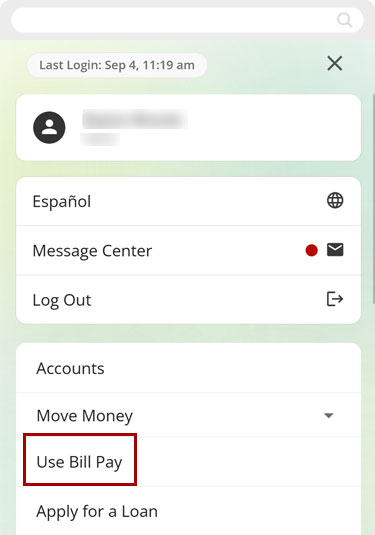
Select Use Bill Pay.
How to update a biller
Select Manage Billers.
.jpg)
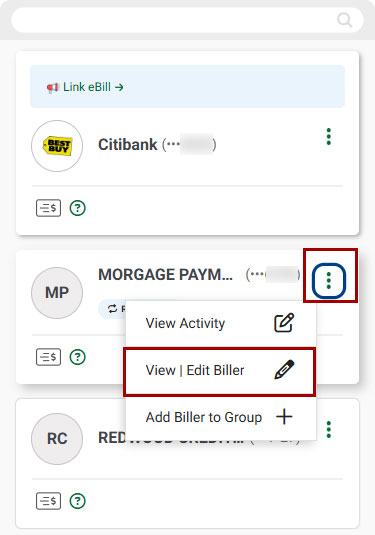
Select the three-dot menu (...), then View | Edit Biller.
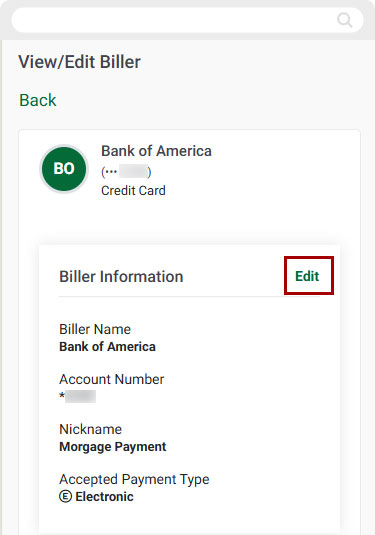
Next to Biller Information, select Edit.
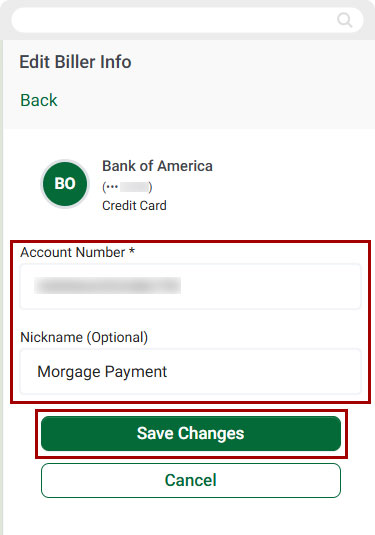
Enter your edits, then select Save Changes.
Note: You cannot edit the Account Number field if Ebills are enabled for the biller. You will need to delete and re-add the biller to update the Account Number.
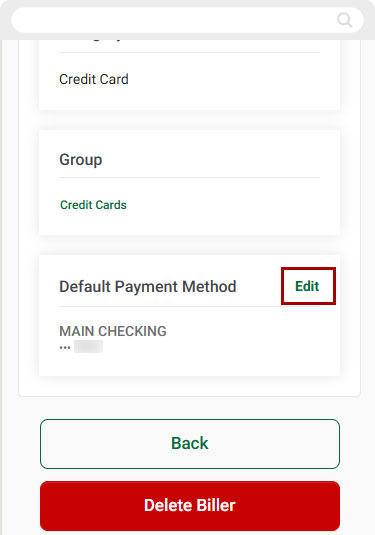
To edit the payment source, select Edit next to Default Payment Method.
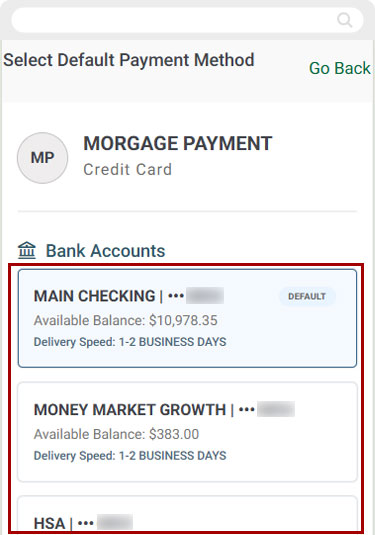
Select the account you want to make the payment from.
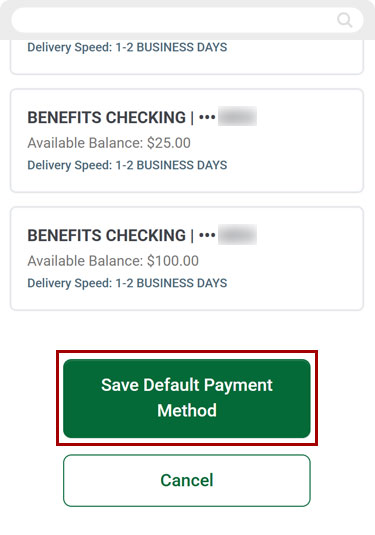
Select Save Default Payment Method.
How to delete a biller
Select Manage Billers.
Select the three-dot menu (…), then View | Edit Biller.
Scroll down to select Delete Biller.
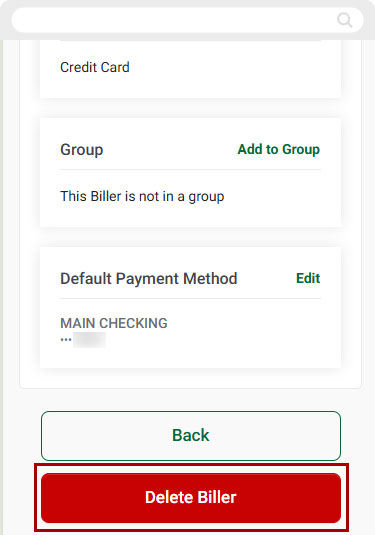
Select Delete Biller again to confirm.
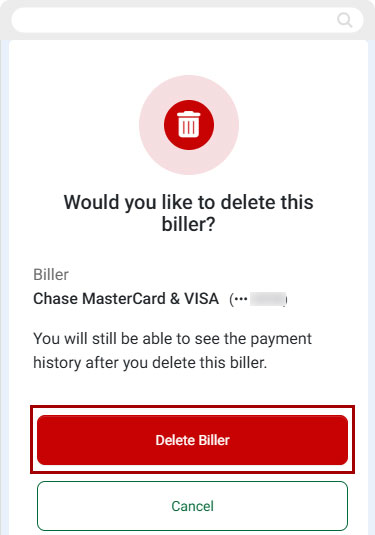
You will see a notification confirming the biller (payee) was deleted.
.jpg)
Desktop
If you're using a computer, follow the steps below. For mobile devices, go to the mobile steps
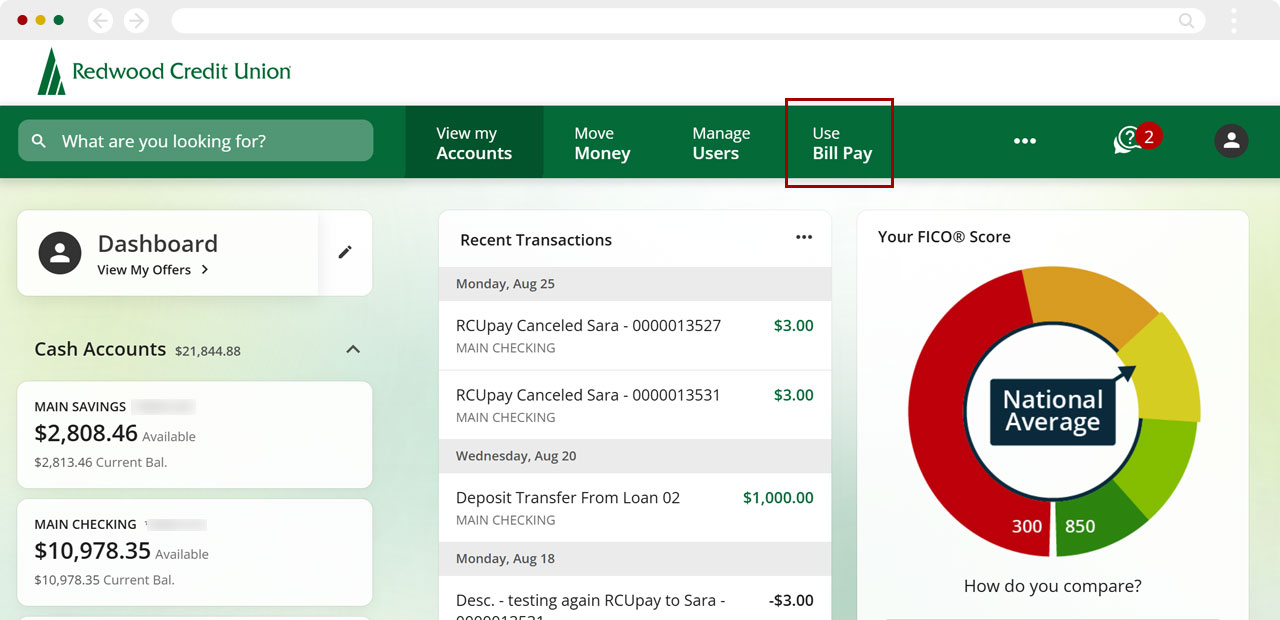
From the top menu, select Use Bill Pay.
How to update a biller
Select Manage Billers.
.jpg)
Select the three-dot menu (…), then select View | Edit Biller.
.jpg)
Next to Biller Information, select Edit.
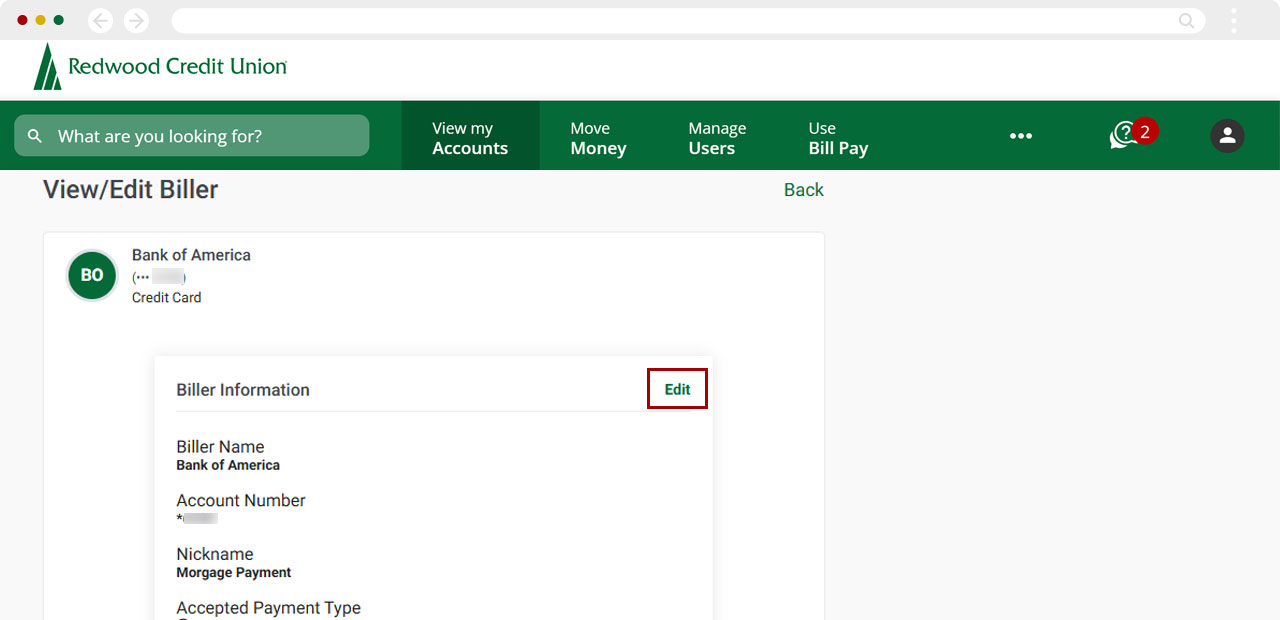
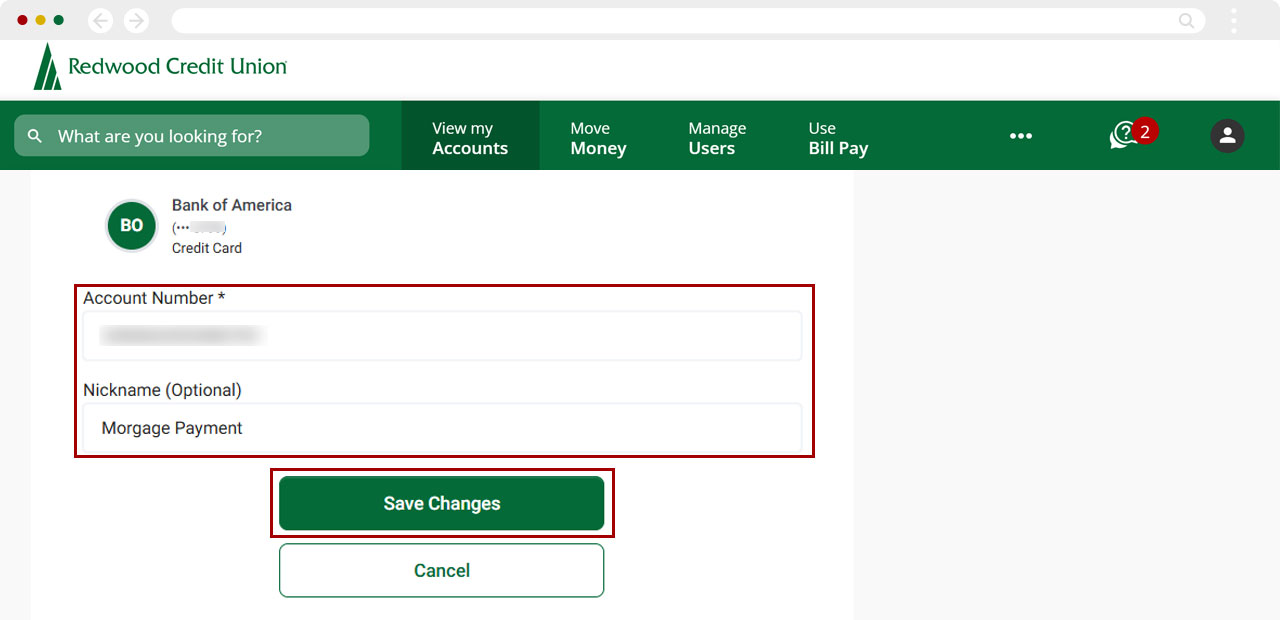
Enter your edits, then select Save Changes.
Note: You cannot edit the Account Number field if Ebills are enabled for the biller. You will need to delete and re-add the biller to update the Account Number.
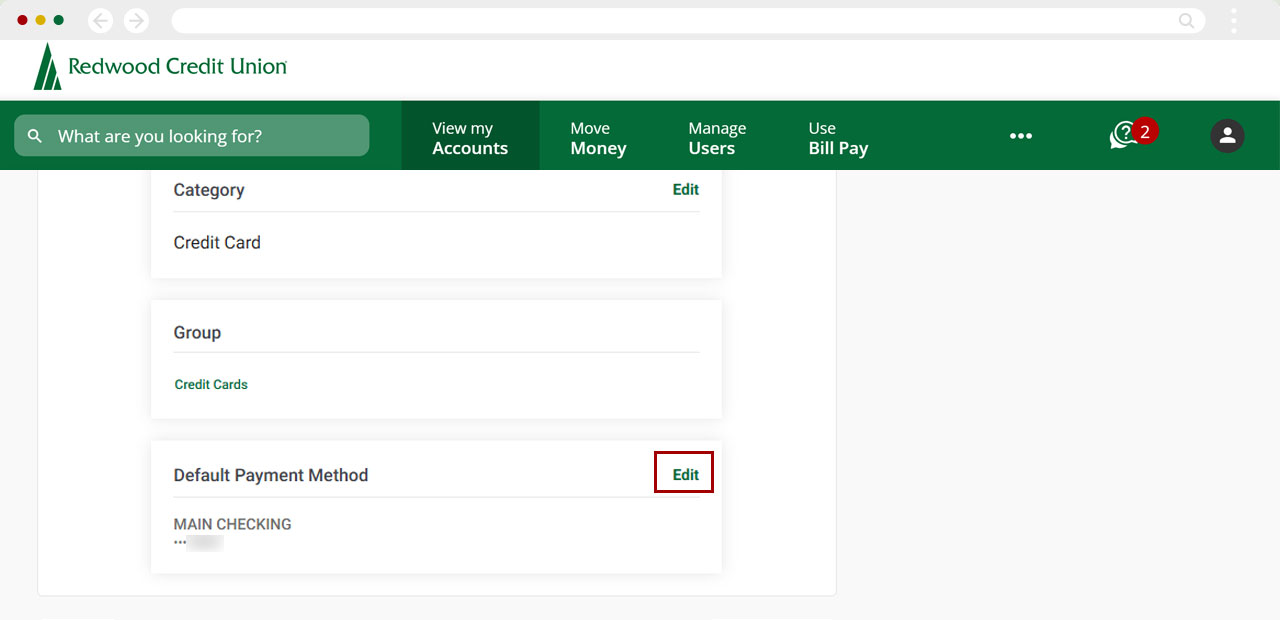
To edit the payment source, select Edit next to Default Payment Method.
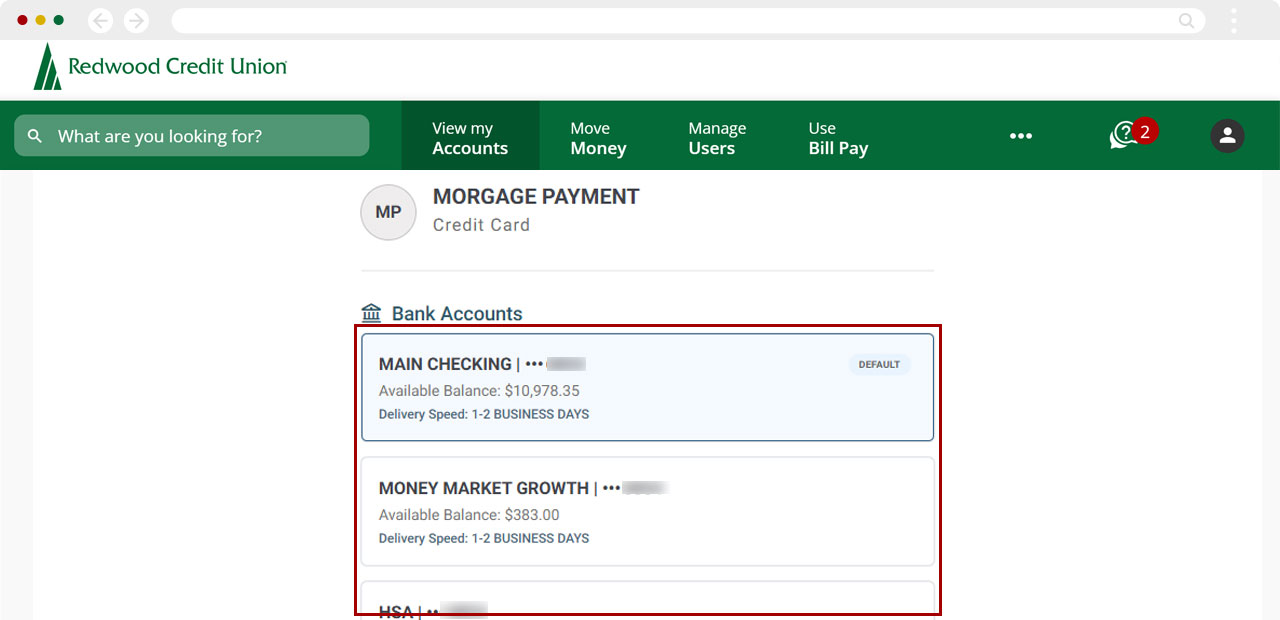
Select the account you wish to make the payment from.
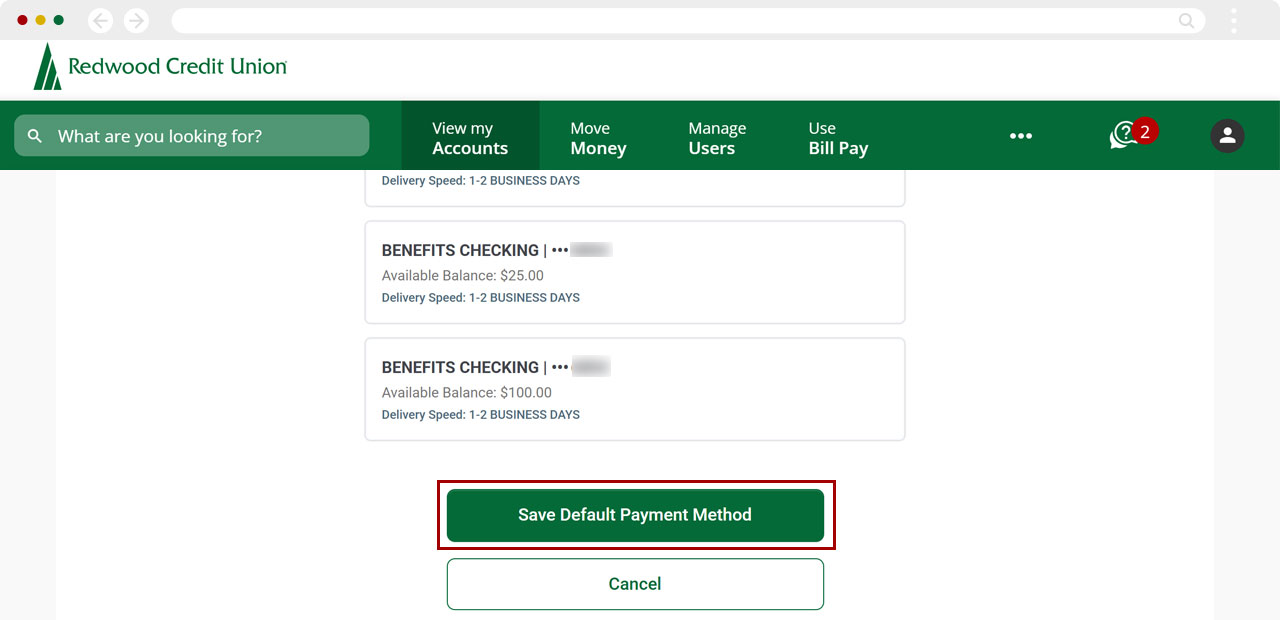
Select Save Default Payment Method.
How to delete a biller
Select Manage Billers.
Select the three-dot menu (…), then View | Edit Biller.
Scroll down to select Delete Biller.
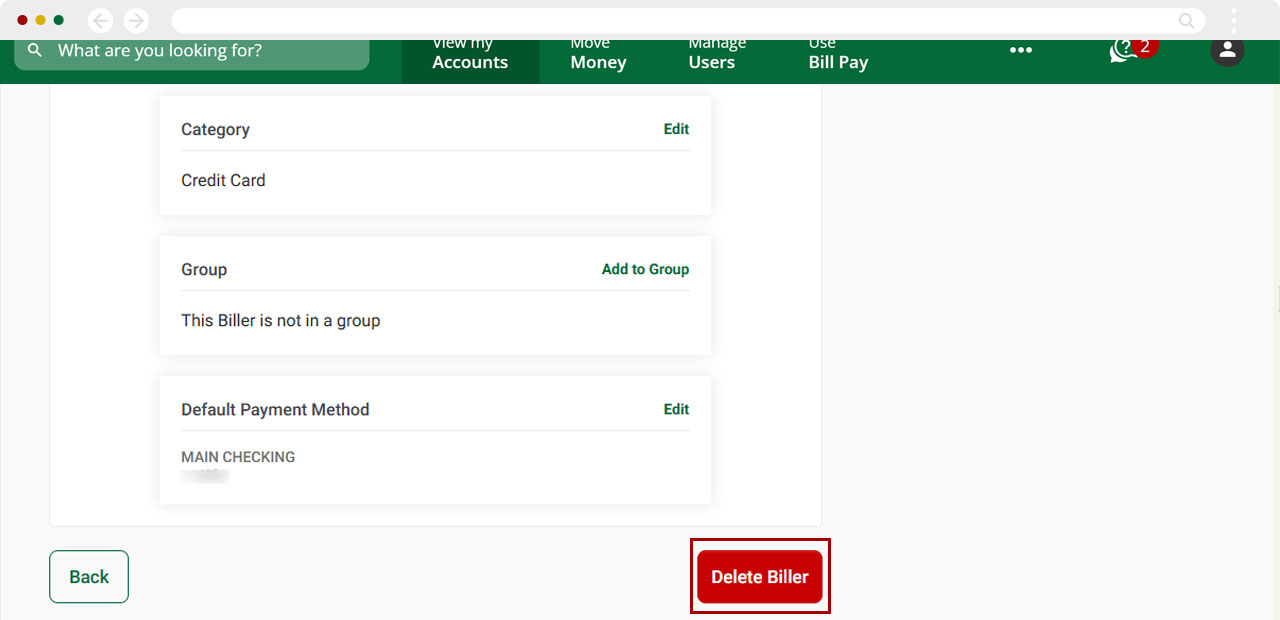
Select Delete Biller again to confirm.
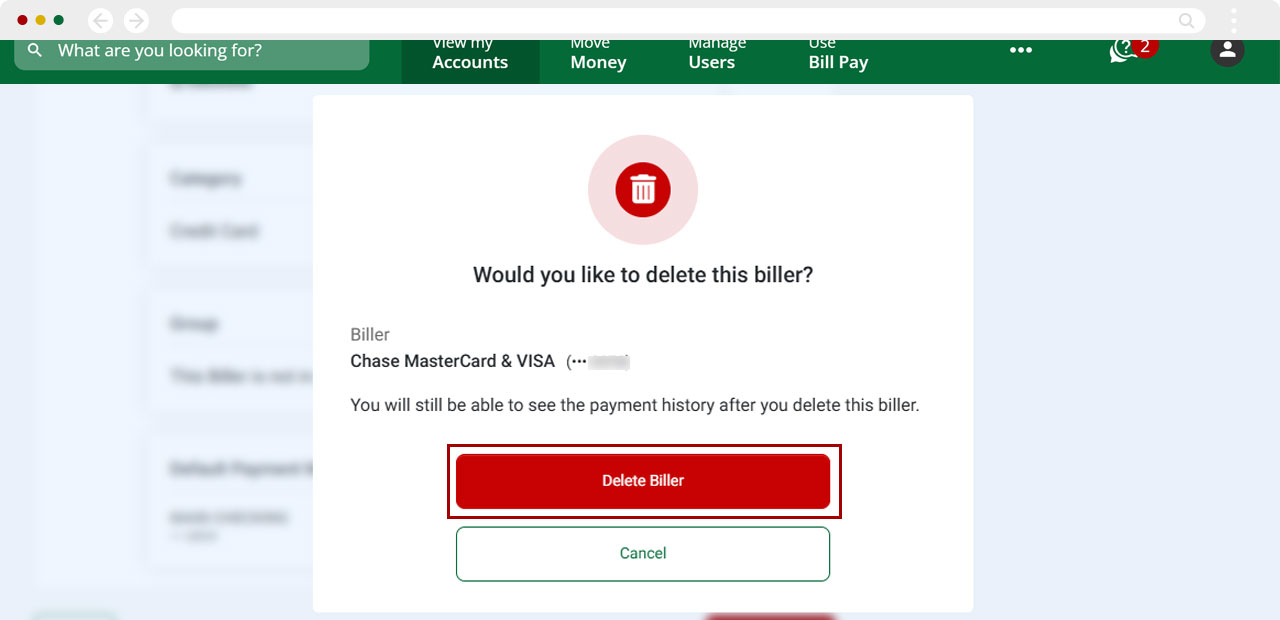
Under Notifications, you will see a confirmation that the biller (payee) was deleted.
.jpg)
