Bill Center: How to add a new biller
You can add any company or person in the United States as a biller.
This article covers steps for the updated Bill Center experience. If you are still using the previous version of Bill Pay, go to Bill Pay: How to Add a Payee.
Note: Please have your latest billing statement available to ensure the following information is up to date and accurate.
- Name of biller (company or individual being paid)
- Account number – Required if biller is a company
- Biller’s mailing address – If the biller can receive electronic payments, only the biller’s zip code may be required
Mobile
If you're using a mobile device, follow the steps below. For computers, go to the desktop steps
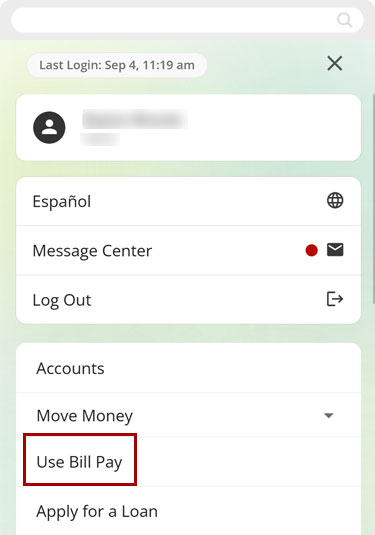
At bottom right, select the Menu.
.jpg)
Select Use Bill Pay.
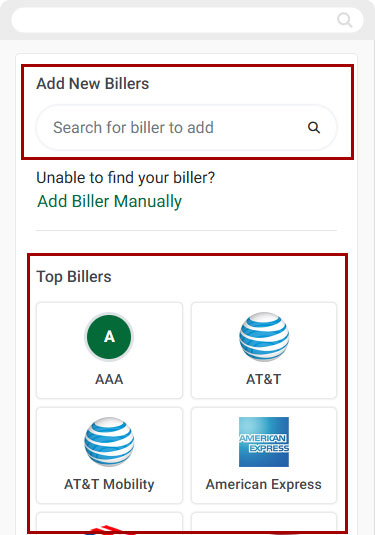
Scroll down to Add New Billers.
Select the biller’s name if it appears under Top Billers. Or enter the biller’s name in the Add New Billers search field.
Select the biller’s name under Search Results.
If you cannot locate the biller through searching, select Add Biller Manually.
.jpg)
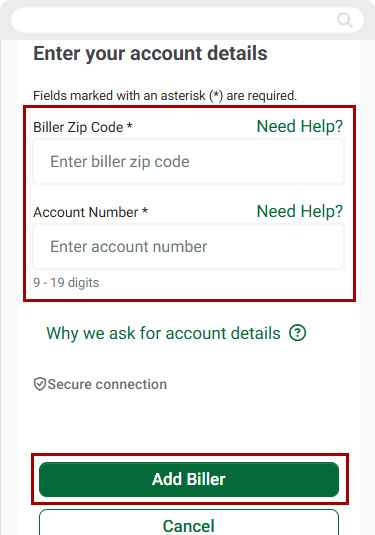
Enter the Biller Zip Code and Account Number, then select Add Biller.
Notes:
- If the biller accepts electronic payments, you may only need their mailing zip code.
- If the biller only accepts check payments, you will need their full mailing address.
- You will have the opportunity to confirm all details before finalizing the biller.
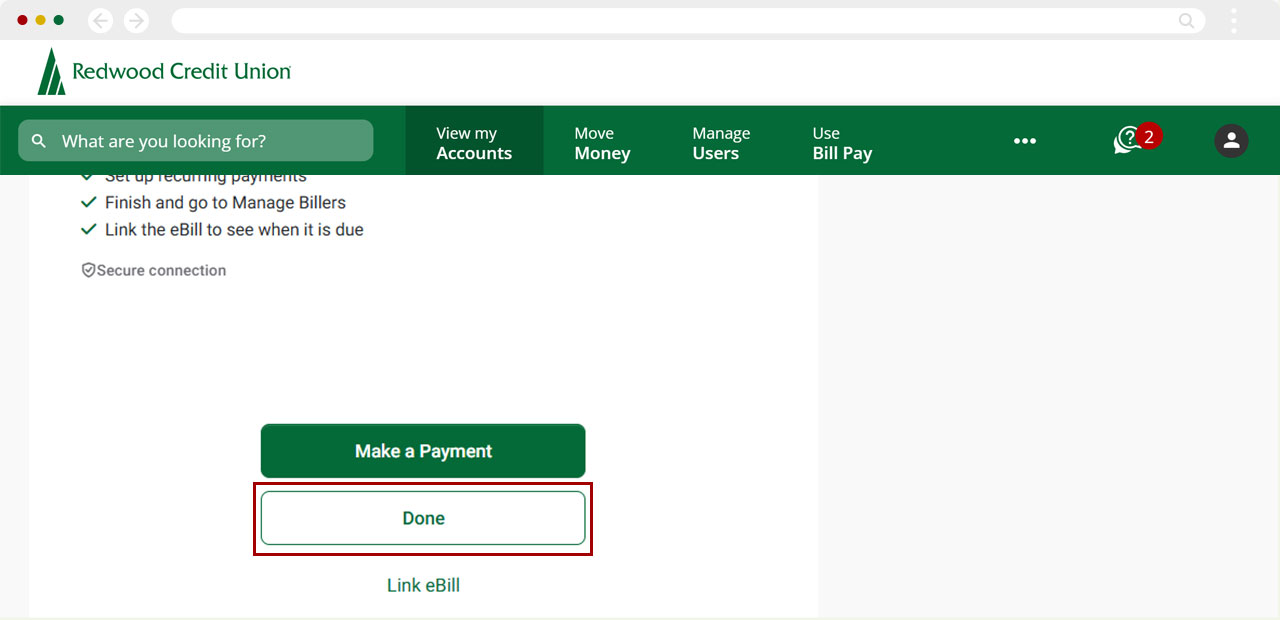
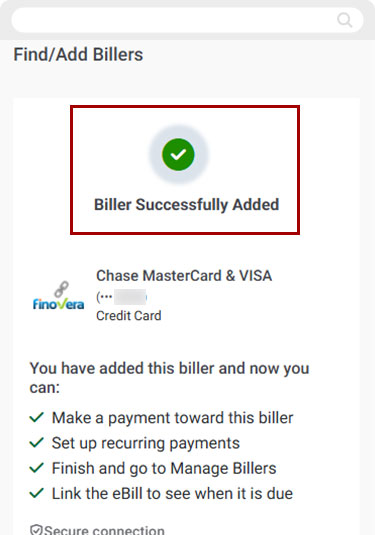
You will see a confirmation screen showing the biller was successfully added.
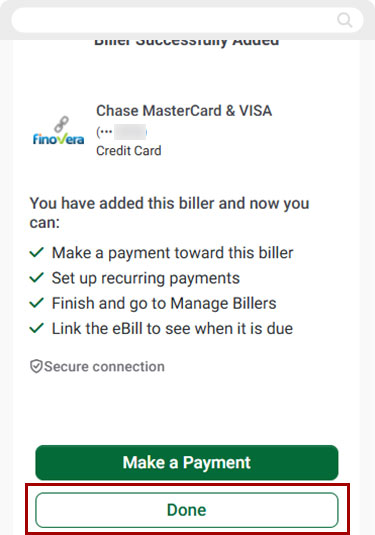
Select Done to return to Pay Bills.
Desktop
If you're using a computer, follow the steps below. For mobile devices, go to the mobile steps
From the top menu, select Use Bill Pay.
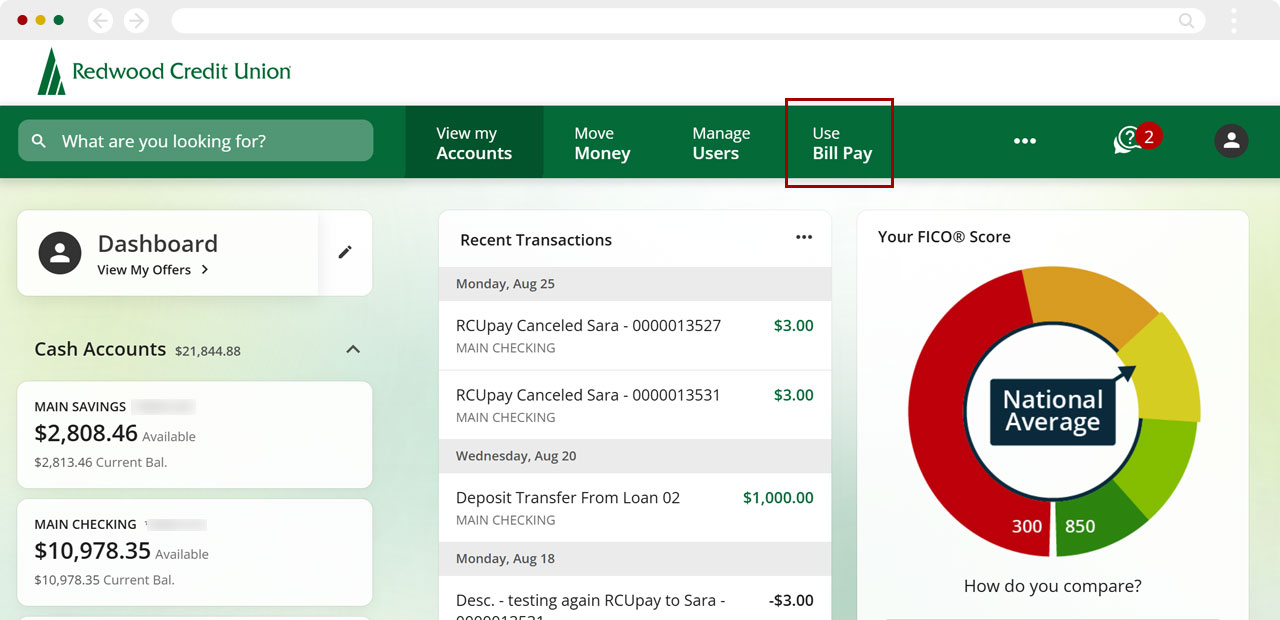
On the right, in the Add New Billers section, select the biller’s name if it appears under Top Billers. Or enter the biller’s name in the Add New Billers search field.
.jpg)
Select the biller’s name under Search Results.
If you cannot locate the biller through searching, select Add Biller Manually.
.jpg)
Type in the Biller Zip Code and Account Number.
Note:
- If the biller accepts electronic payments, you may only need their billing address zip code.
- If the biller is an individual or business that only accepts check payments, you will need their full billing address.
- You will have the opportunity to confirm all details are correct before finalizing the biller.
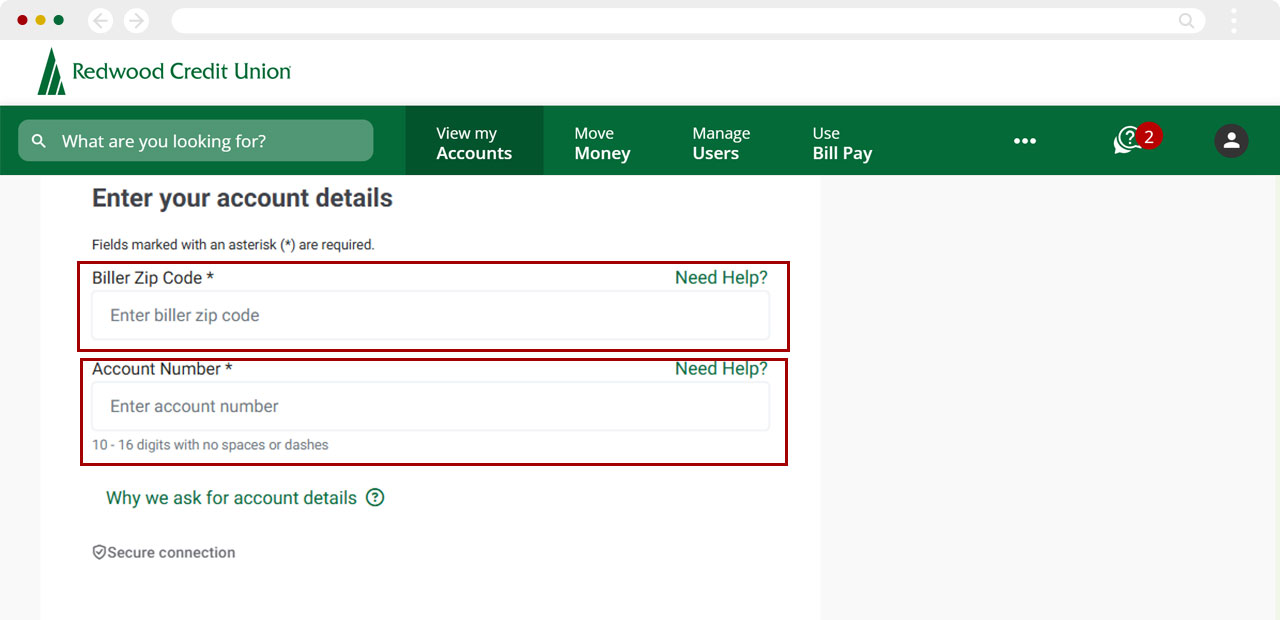
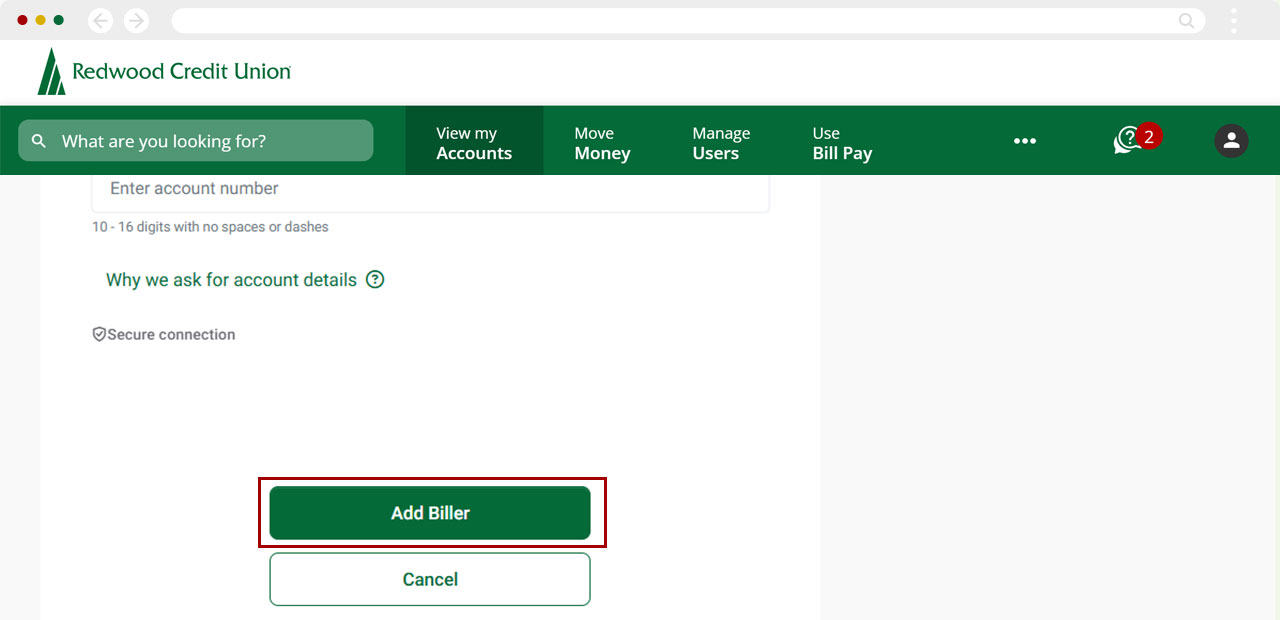
Select Add Biller.
You will see a confirmation screen showing the biller was successfully added.
.jpg)
Select Done to return to the Pay Bills.