Bill Center: How to Submit a Research Request
This article covers steps for the updated Bill Center experience. If you are still using the previous version of Bill Pay, go to Bill Pay: How to submit a research request.
If you send a payment in Bill Center and the biller does not apply it to your account, or applies it incorrectly, you may need to submit a payment research request for assistance.
Payment research requests are only available for electronic payments. Check payments that are not received may require you to place a stop payment so you can reissue the check to the biller.
Note: The Smart View navigation tab is now labeled Activity. Screenshots may still show Smart View.
Mobile
If you're using a mobile device, follow the steps below. For computers, go to the desktop steps
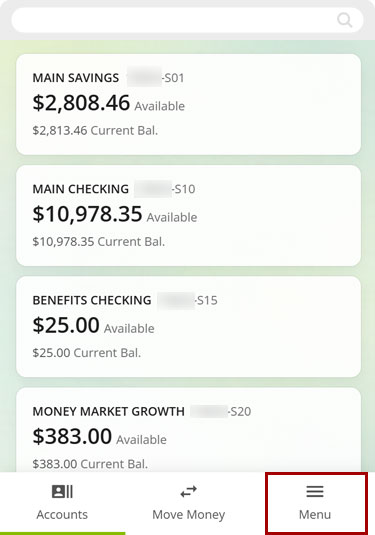
At the bottom right, select Menu.
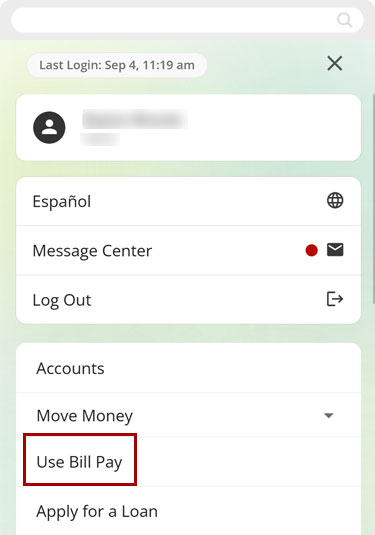
From the top menu, select Use Bill Pay.
Select Smart View.
Note: The Smart View tab in the navigation menu has been updated and is now titled Activity.
.jpg)
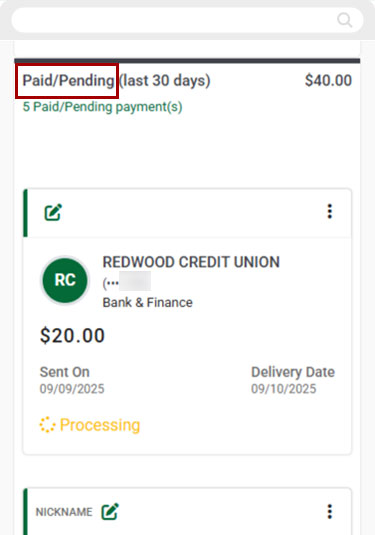
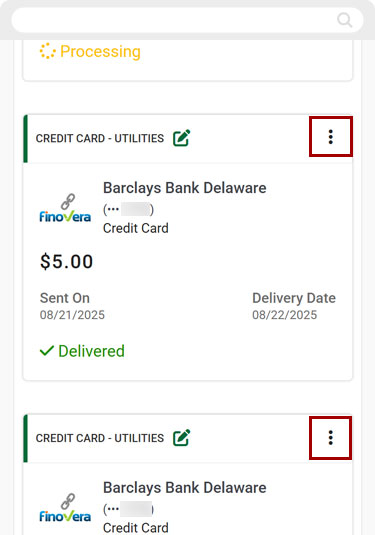
Scroll down to Paid/Pending.
Select the three-dot menu (…).
Note: The payment must display as Delivered for the research request option to be available.
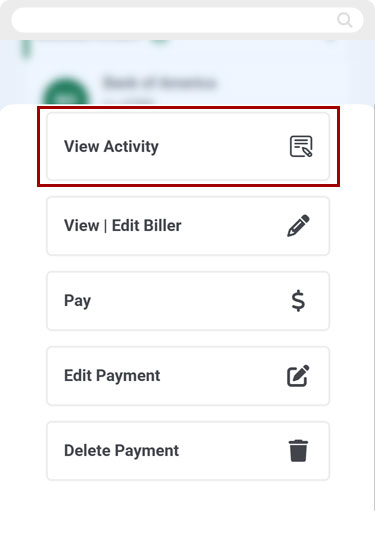
Select View Activity.
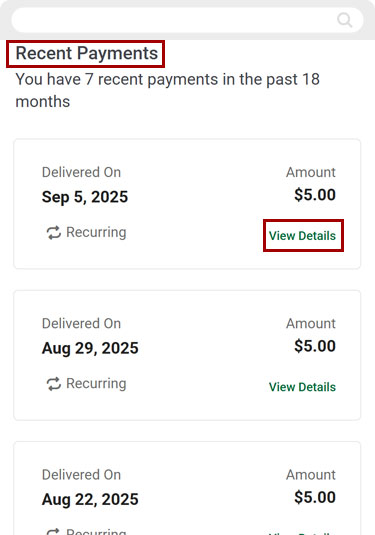
Under Recent Payments, select View Details.
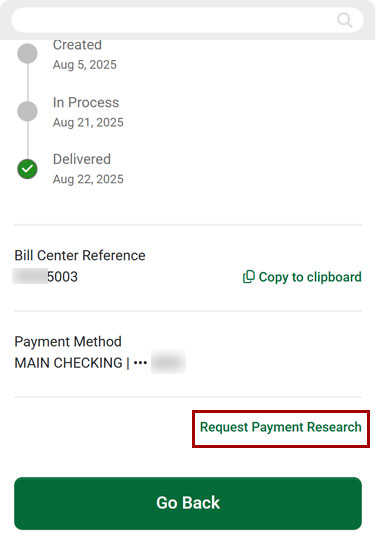
Scroll down and select Request Payment Research.
Note: The payment must display as Delivered for a research request to be made.
Under Select Your Reason select the reason for your research request.
Note: Sometimes the biller (payee) may need additional information or request a conference call to resolve the missing payment. If this is required, you will be contacted. Some research requests can take up to 10 business days, depending on the biller (payee).
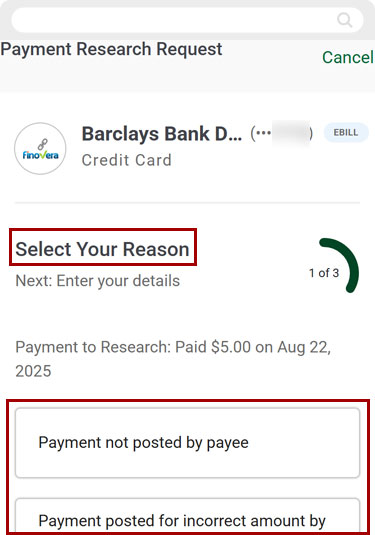
Select Next Enter Details.
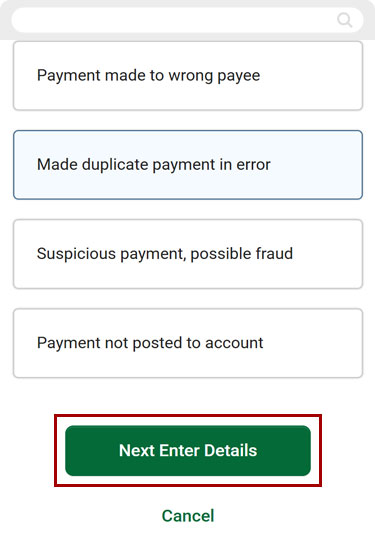
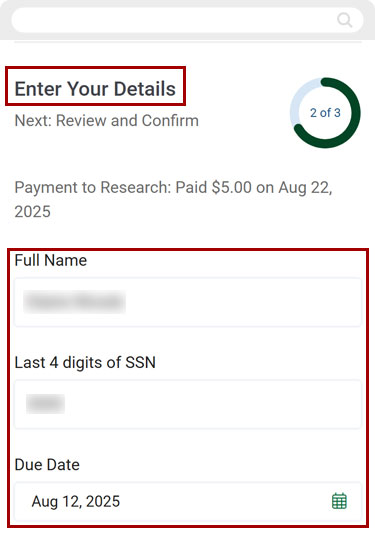
Enter your Full Name, Last 4 of your SSN, and Due Date.
Select Payment Type.
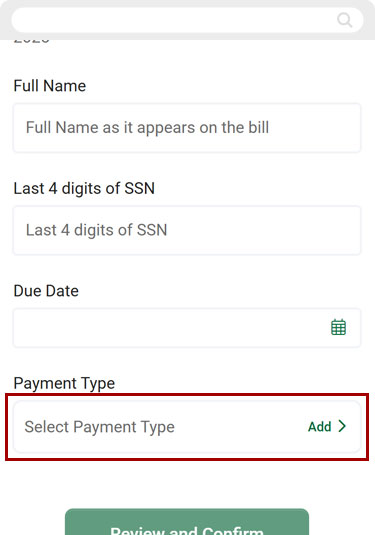
Once a payment type has been chosen, scroll down to select Save Payment Type.
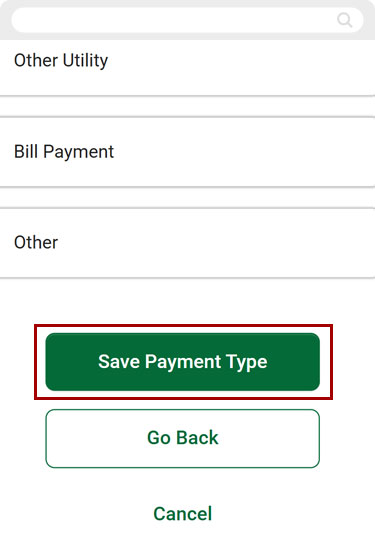
Select Review and Confirm.
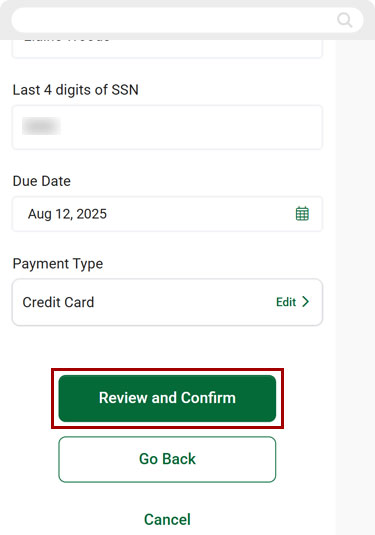
Review the information for accuracy.
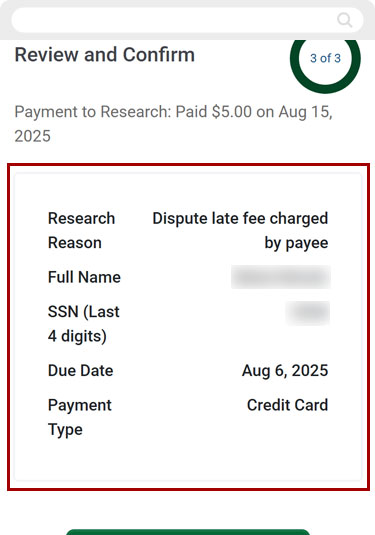
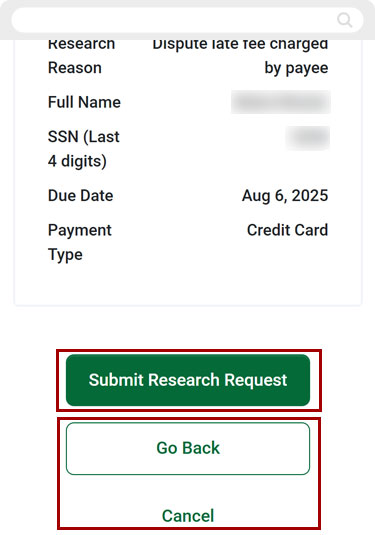
Select Submit Research Request. Or select Go Back to exit and return to the Pay Bills home page. To cancel your research request. Select Cancel.
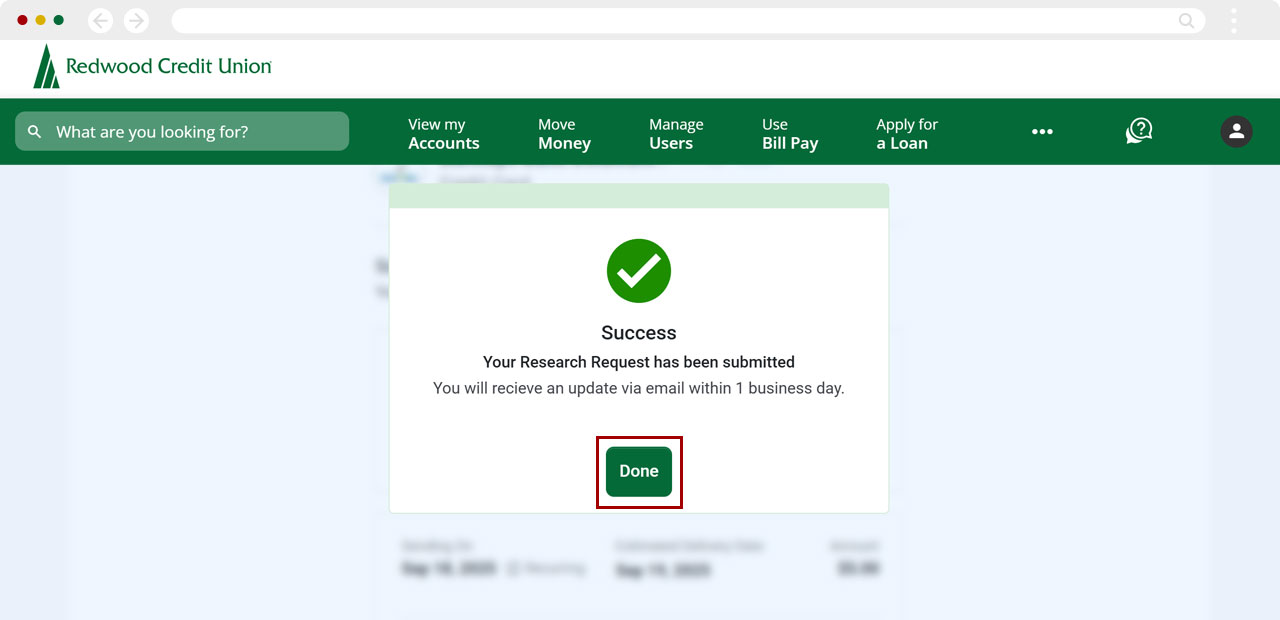
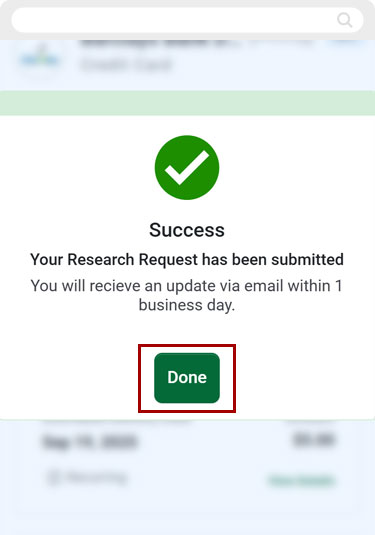
You will see confirmation Your research request has been submitted. Select Done to return to Payment Activity.
Desktop
If you're using a computer, follow the steps below. For mobile devices, go to the mobile steps
From the top menu, select Use Bill Pay.
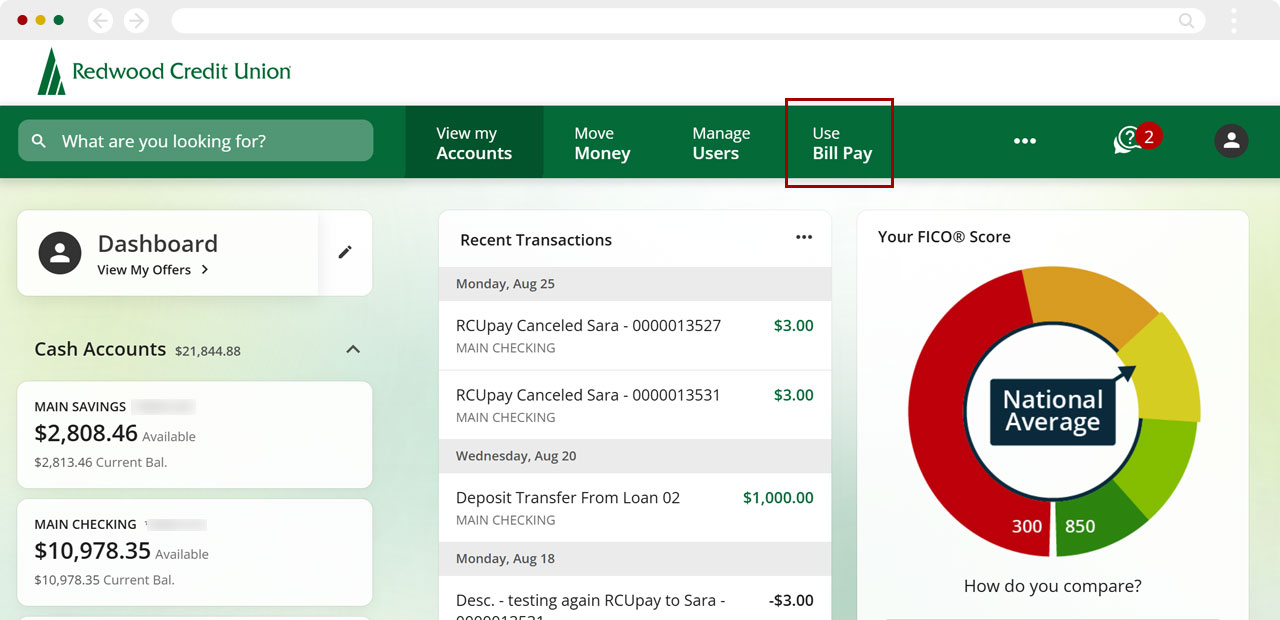
Select the Smart View tab.
Note: The Smart View tab in the navigation menu has been updated and is now titled Activity.
.jpg)
Scroll down to Paid/Pending.
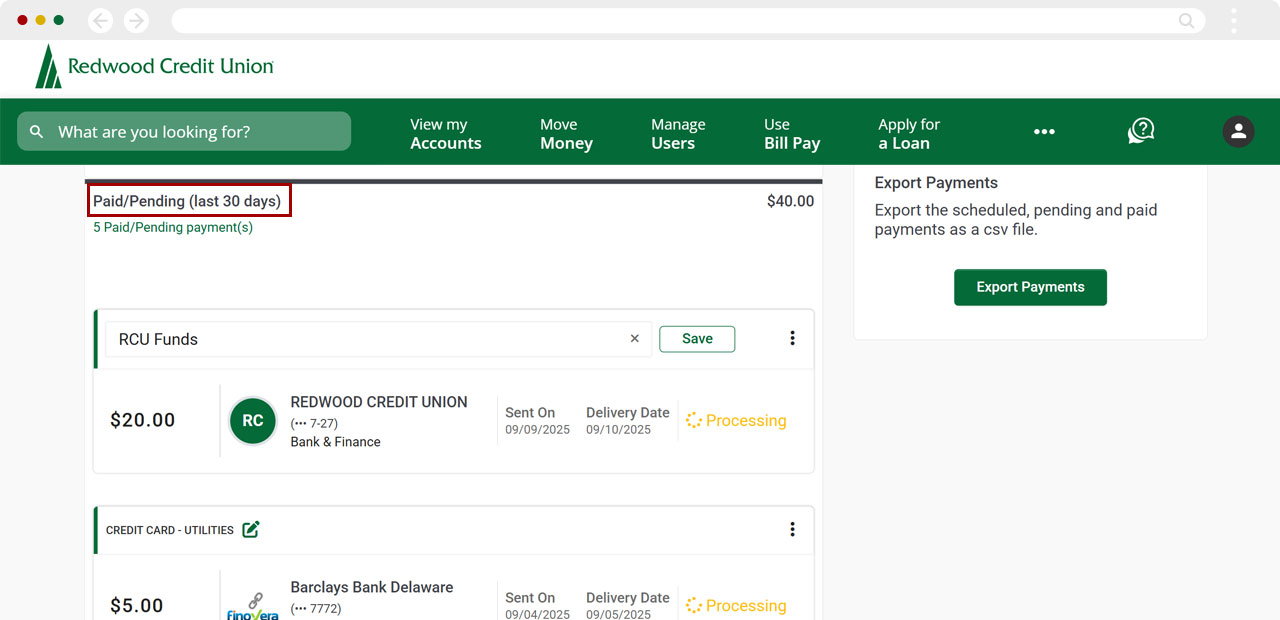
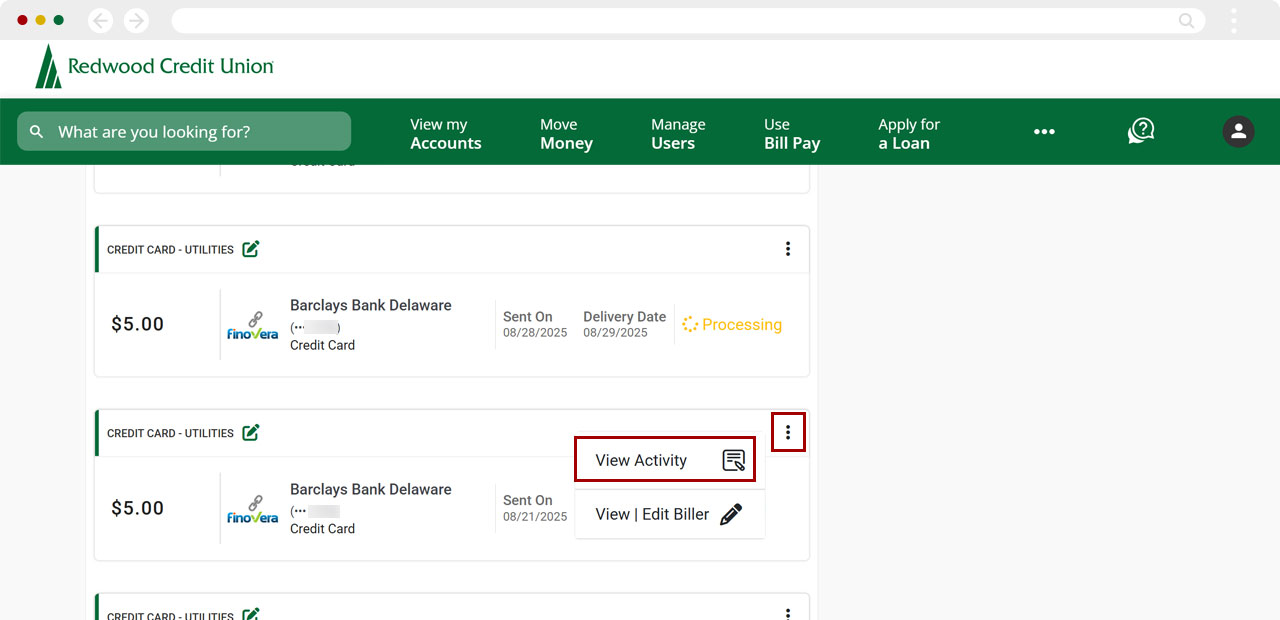
Select the three-dot menu (…), then select View Activity.
Note: The payment must display as Delivered for the research request option to be available.
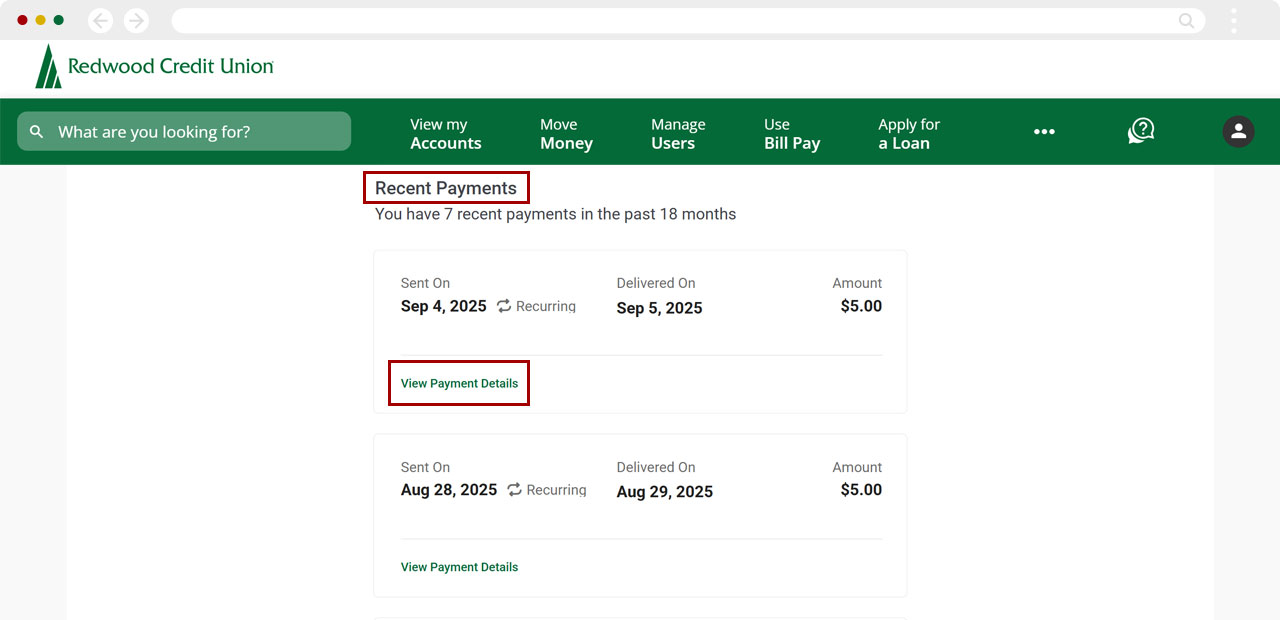
Scroll down to Recent Payments, then select View Payment Details.
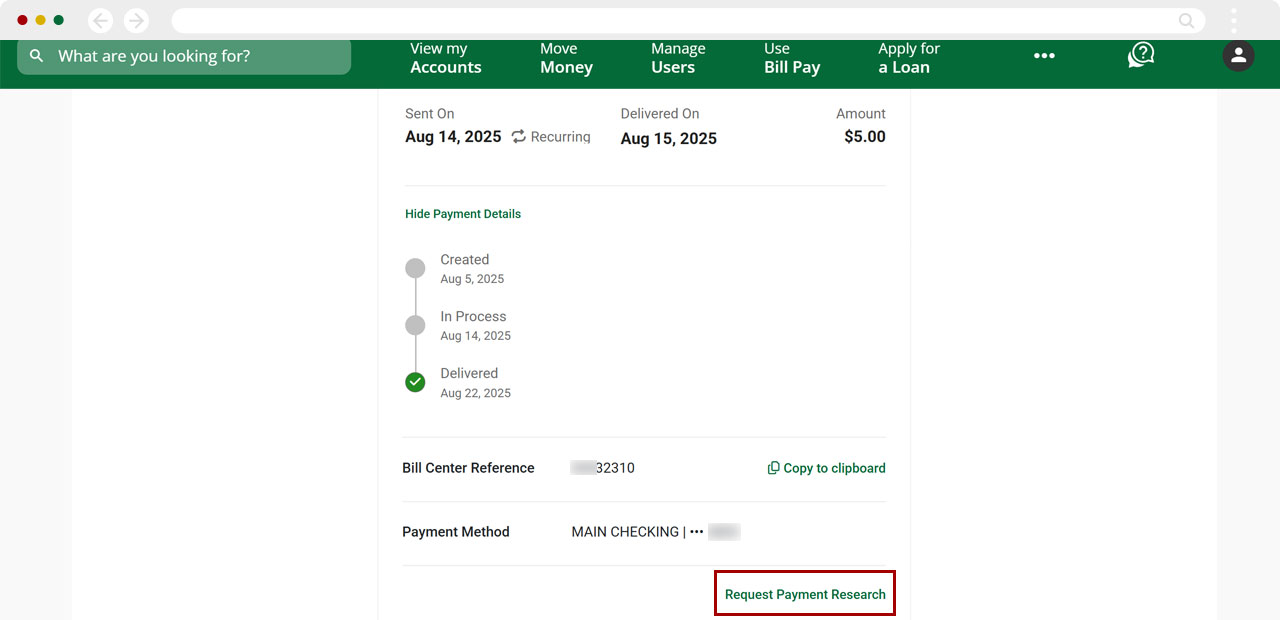
Scroll to the bottom and select Request Payment Research.
Note: The payment must be Delivered for a research request to be made.
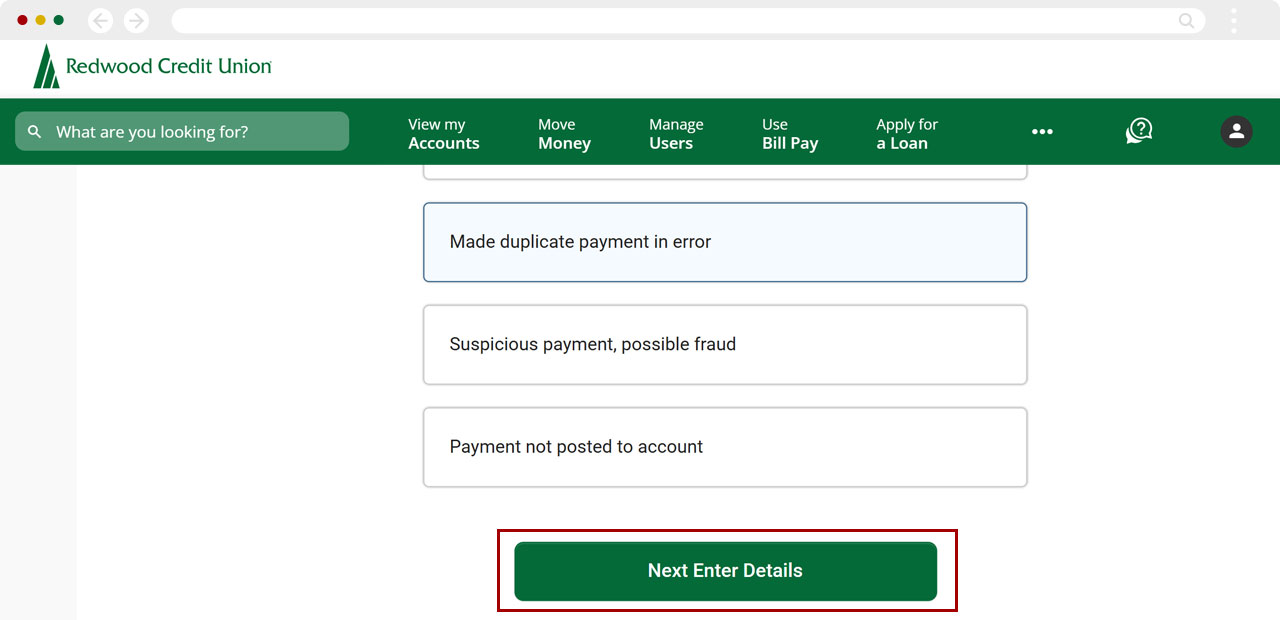
Under Select Your Reason select the reason for your research request.
Note: Sometimes the biller (payee) may need additional information or request a conference call to resolve the missing payment. If this is required, you will be contacted. Some research requests can take up to 10 business days, depending on the biller (payee).
.jpg)
Select Next Enter Details.
Enter your Full Name, Last 4 of your SSN, and Due Date.
.jpg)
Select Payment Type.
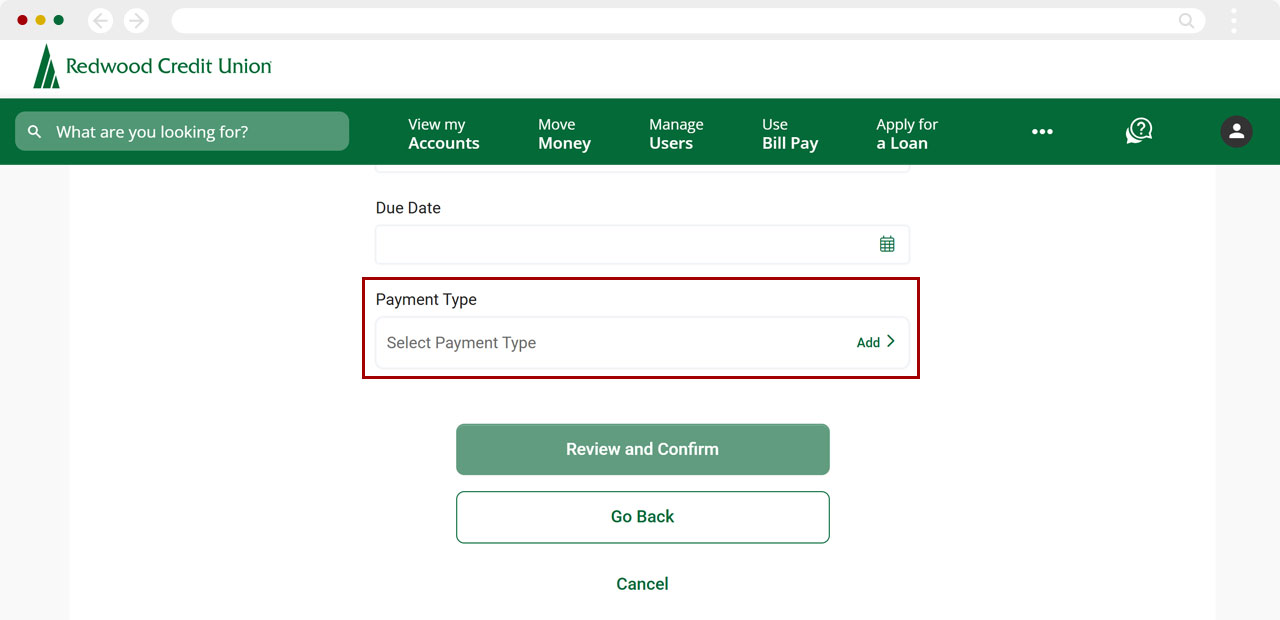
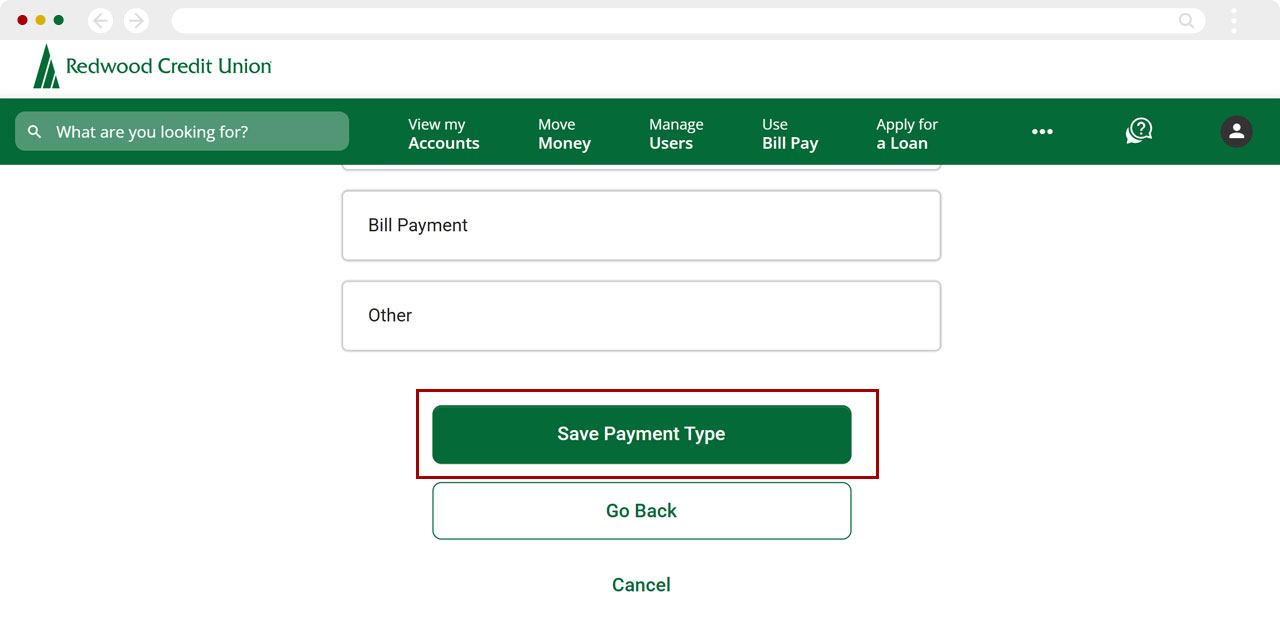
Once a payment type has been chosen, scroll down to select Save Payment Type.
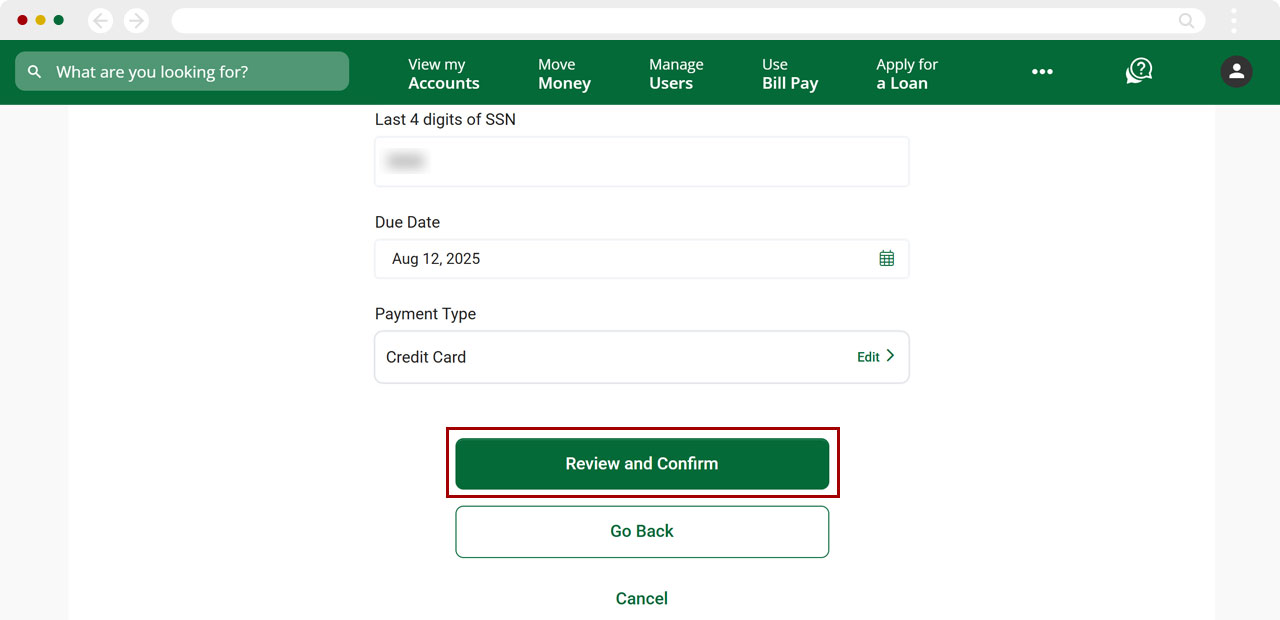
Select Review and Confirm.
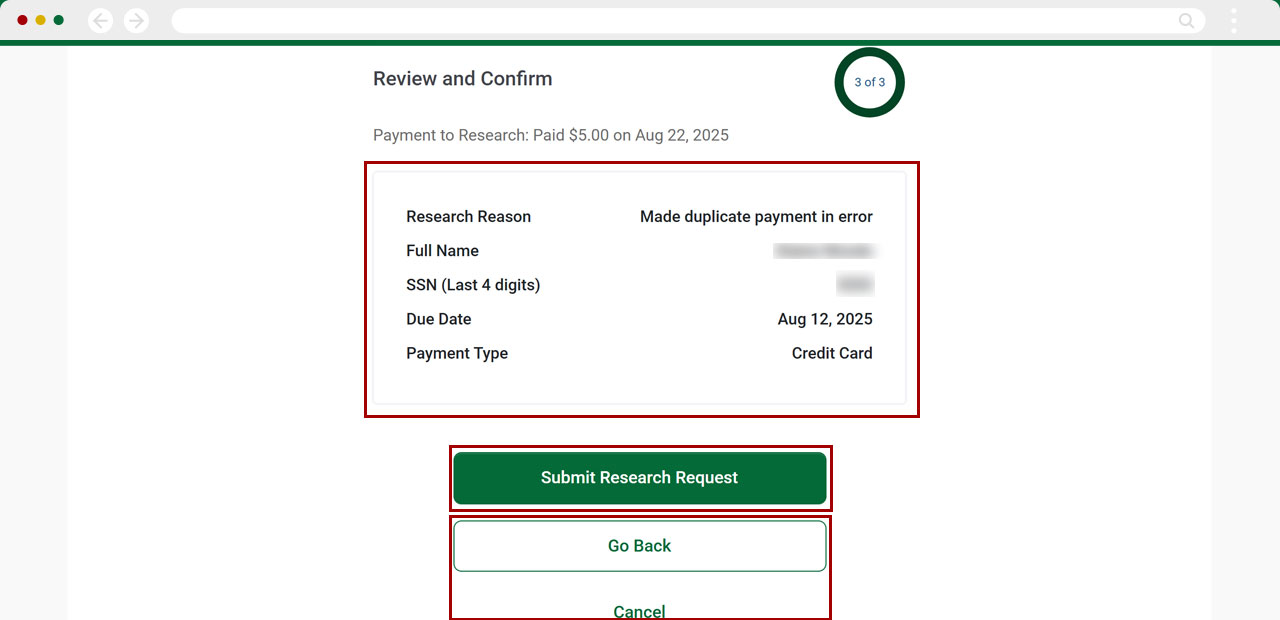
Review the information for accuracy, then select Submit Research Request. Or select Go Back to exit and return to the Pay Bills home page. To cancel your research request, select Cancel.
You will see a confirmation that your research request has been submitted. Select Done to return to Pay Bills.