Bill Center: How to delete a group
This article covers steps for the updated Bill Center experience. If you are still using the previous version of Bill Pay, go to Bill Pay: Setting Up Groups and Making Changes.
Mobile
If you're using a mobile device, follow the steps below. For computers, go to the desktop steps
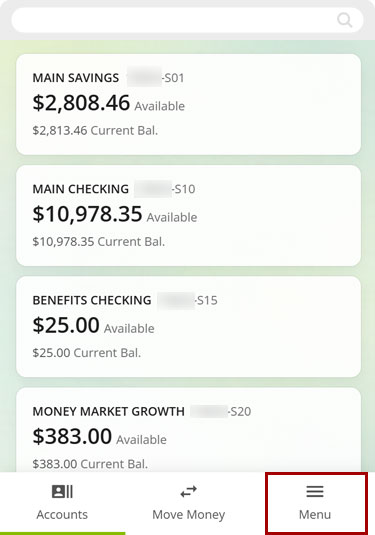
At bottom right, select the Menu.
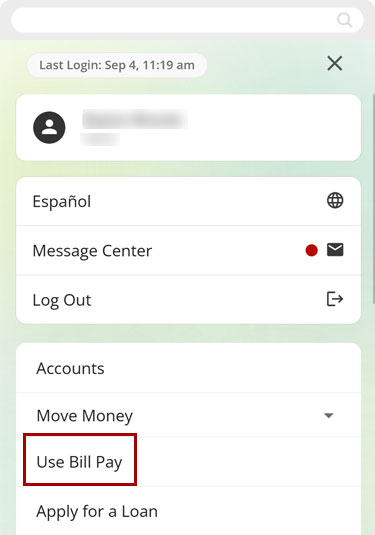
Select Use Bill Pay.
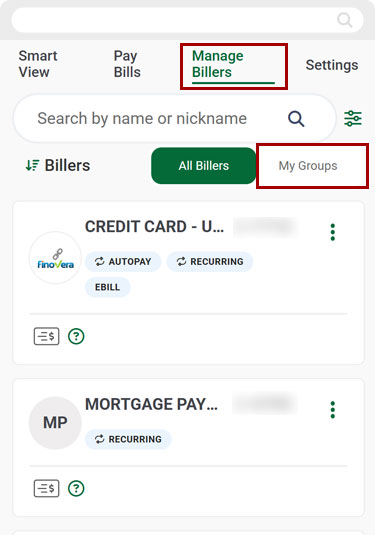
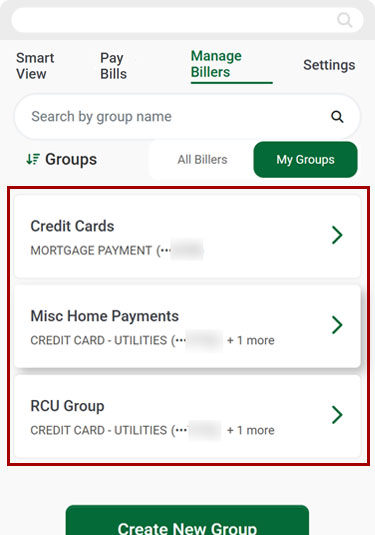
Select Manage Billers, then select My Groups.
Select the group you want to delete.
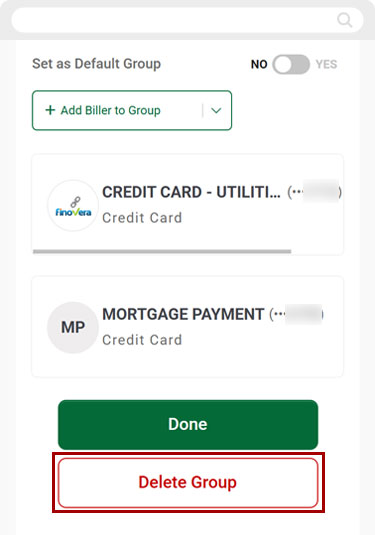
Scroll down and select Delete Group.
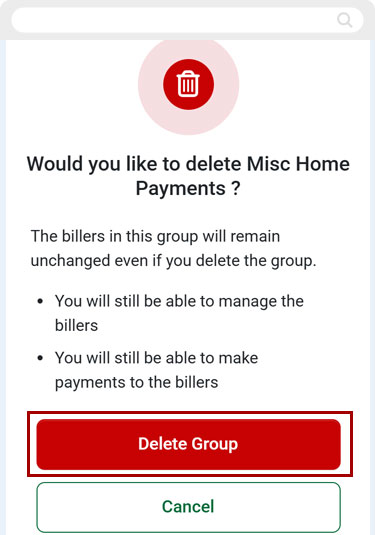
Select Delete Group again to confirm.
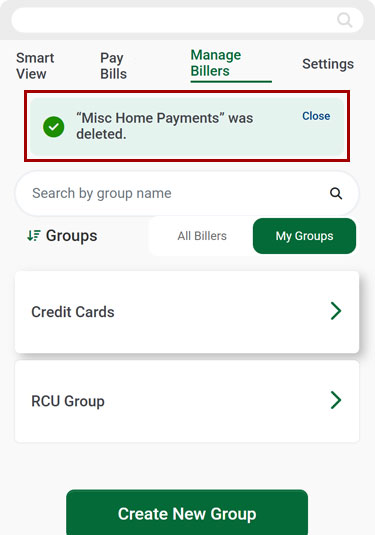
You will see a banner confirming the group was deleted.
Desktop
If you're using a computer, follow the steps below. For mobile devices, go to the mobile steps
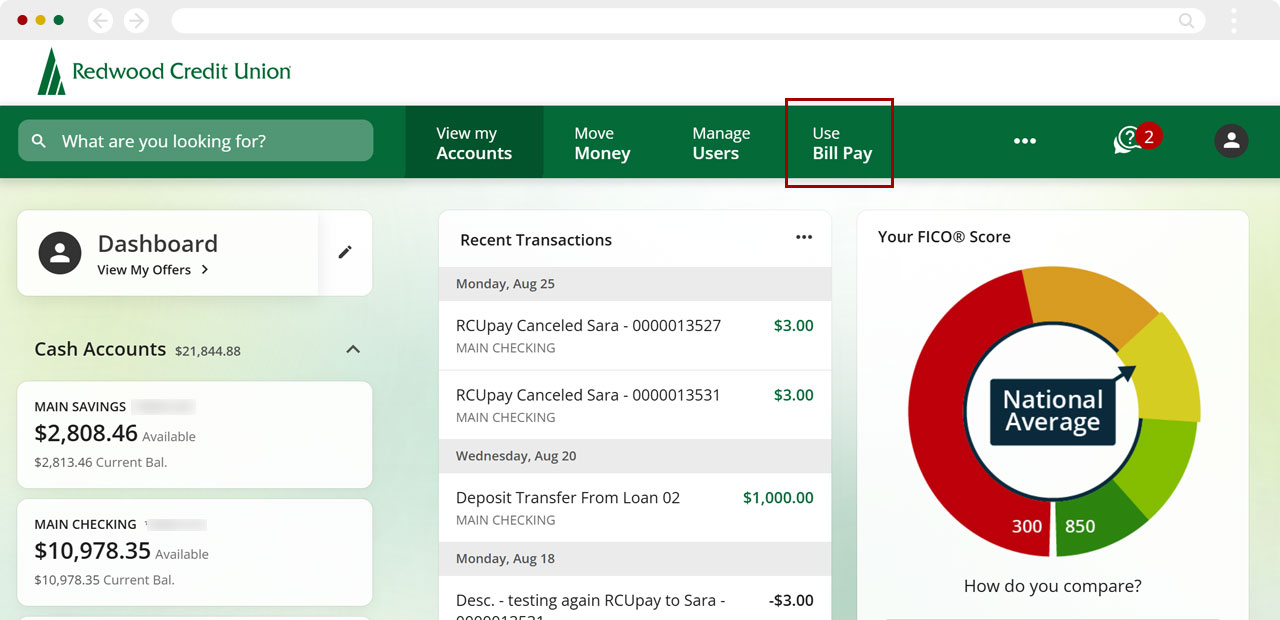
From the top menu, select Use Bill Pay.
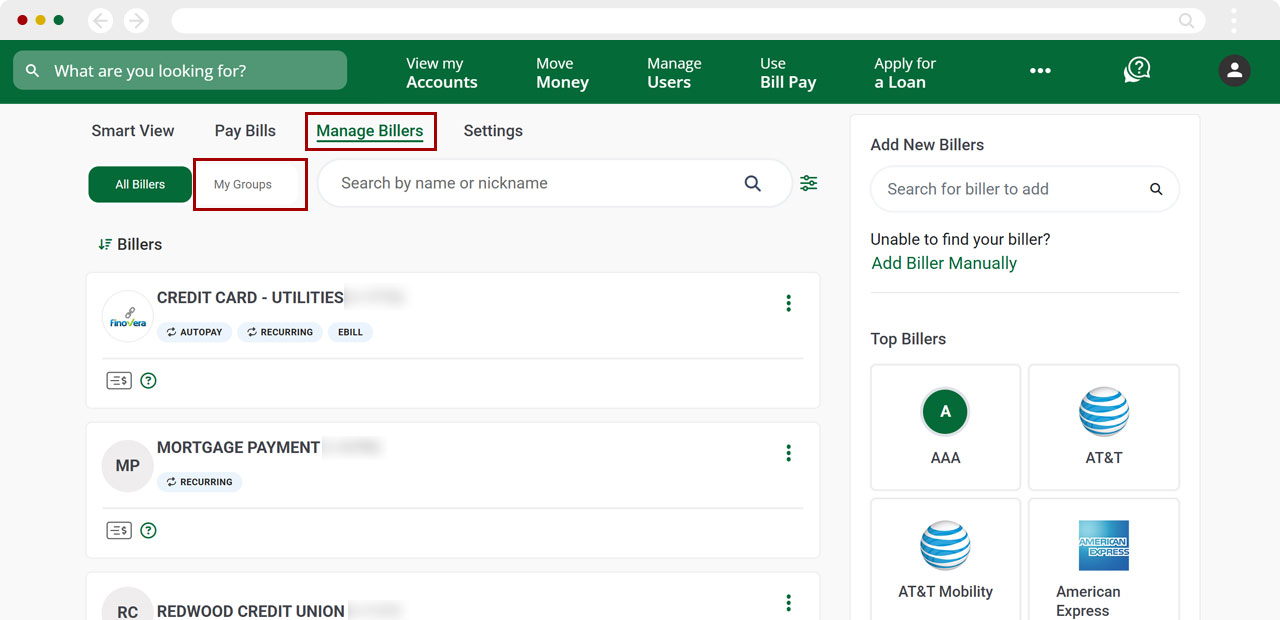
Select Manage Billers, then select My Groups.
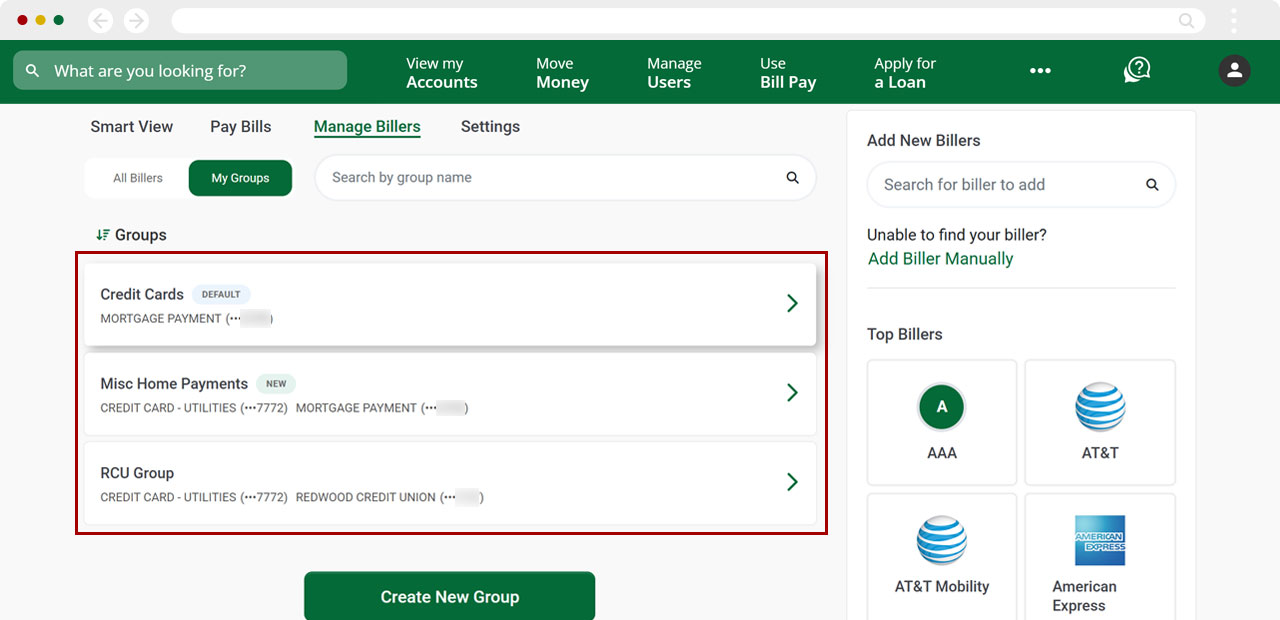
Select the group you want to delete.
Select Delete Group.
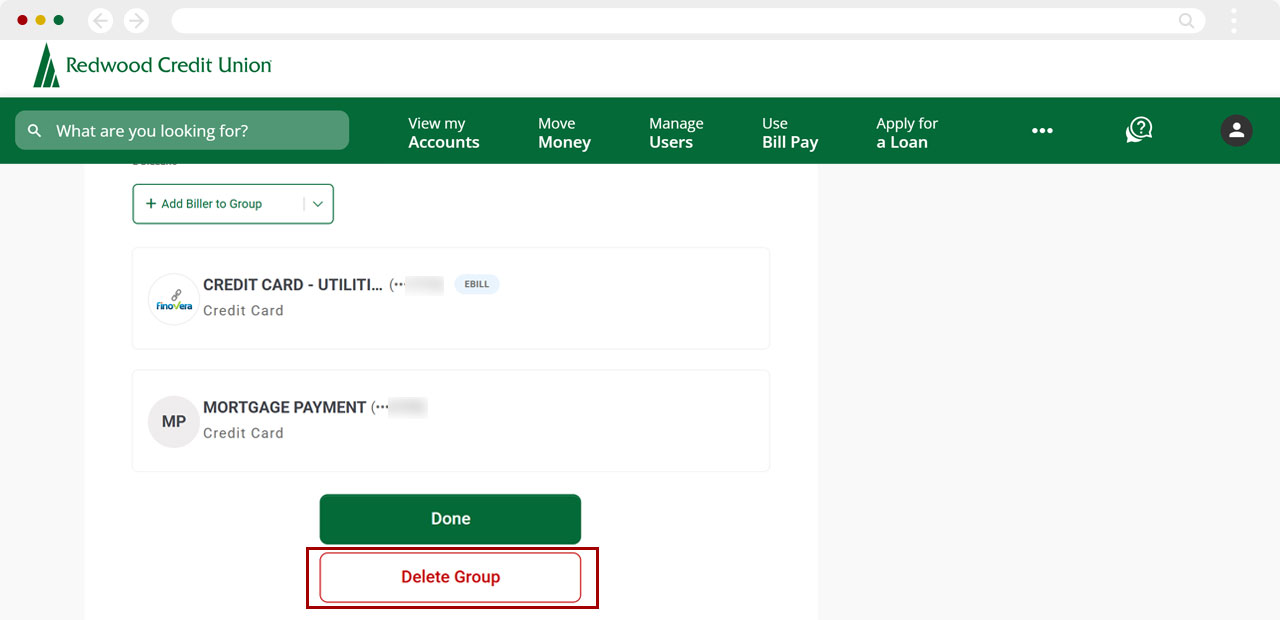
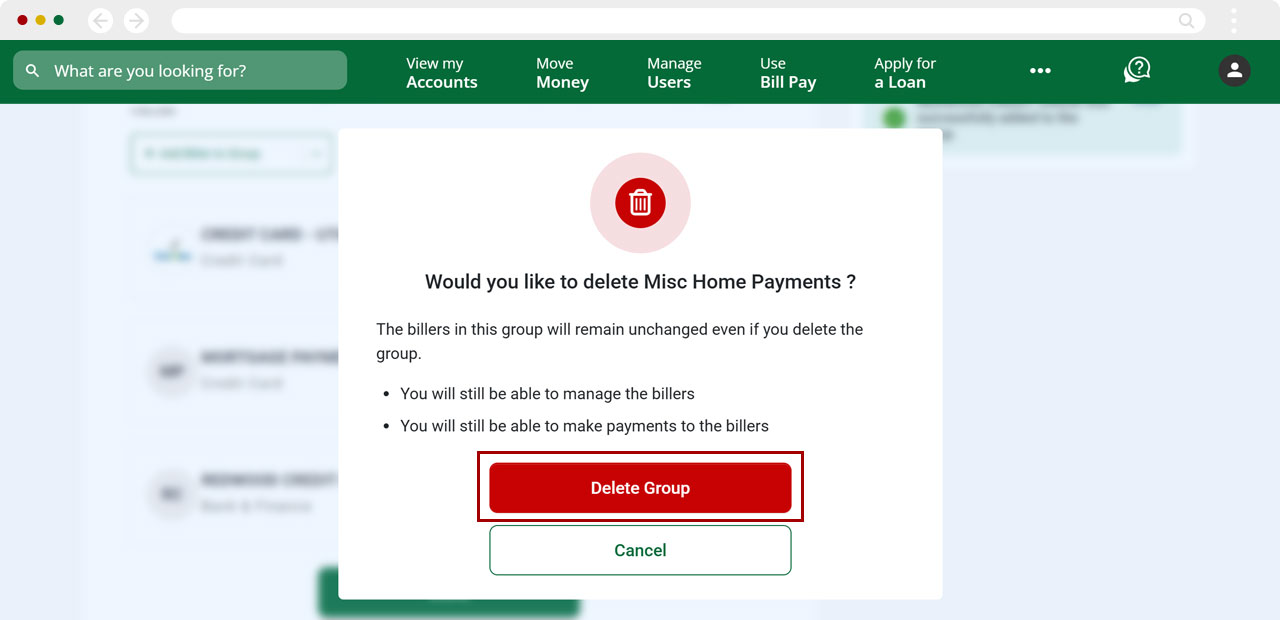
Select Delete Group again to confirm.
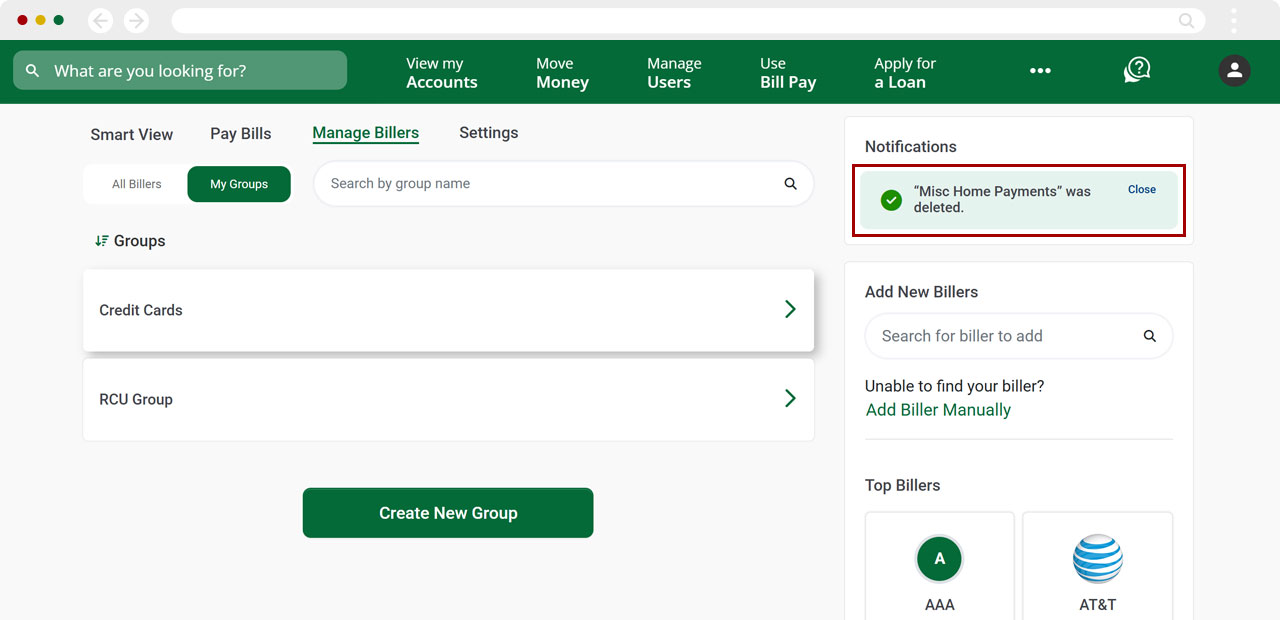
You will see a banner confirming the group was deleted.