How do I update my overdraft protection transfer settings in digital banking?
You can enroll, unenroll, and update your overdraft protection transfer settings by logging in to digital banking on the RCU website or the RCU mobile app. Overdraft transfers are a free service that will transfer funds from your chosen savings or money market accounts to your checking account in the amount needed if you do not have sufficient available funds to cover a transaction. We will process the transfers in the priority order you choose.
Overdraft transfers may be set up from the following accounts or loans.
- Any savings or checking account
- Money market account
- Overdraft line of credit
You can also review our overdraft options.
Mobile
If you're using a mobile device, follow the steps below. For computers, go to the desktop steps
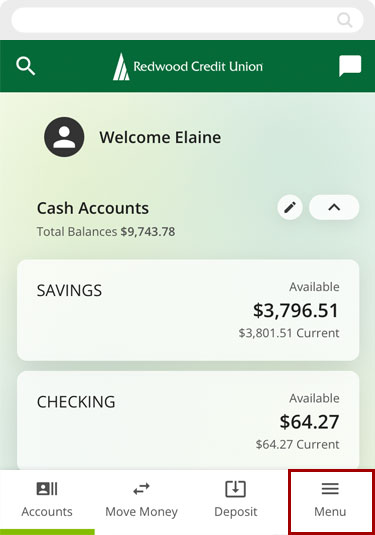
Select the Menu at bottom right.
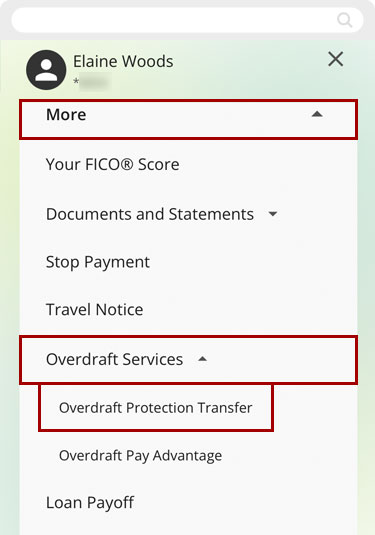
From the More option, tap Overdraft Services and select Overdraft Protection Transfer.
Select the checking account you want to cover with overdraft transfers.
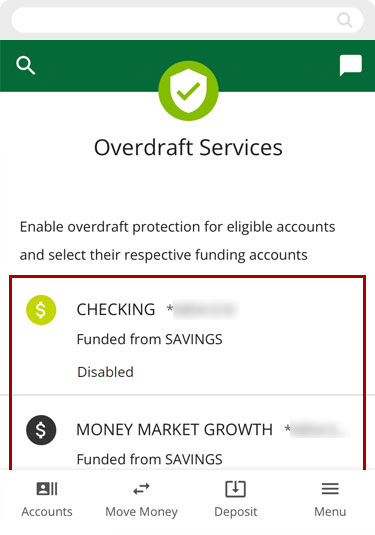
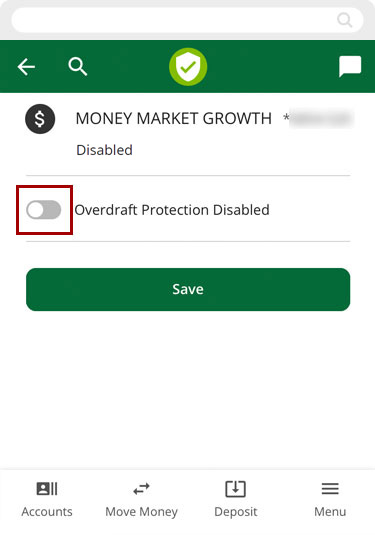
Tap the toggle button to enable overdraft protection on that account.
Note: The toggle button should turn green (ON) and say Overdraft Protection Enabled.
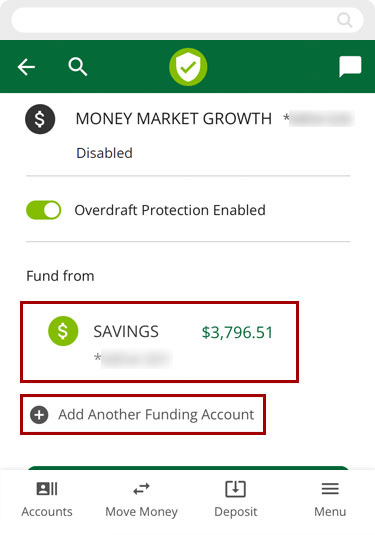
Choose the account or loan you want as your primary overdraft protection source.
You can add more accounts or loans as additional overdraft protection sources by tapping Add Another Funding Account.
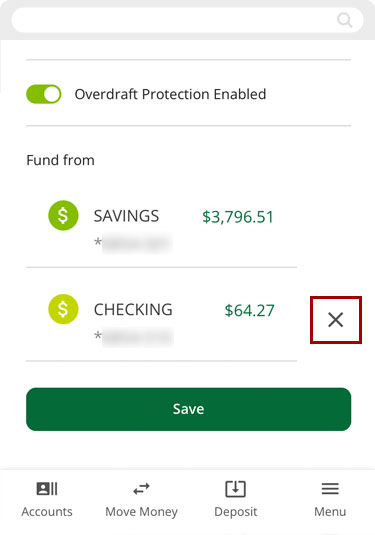
To remove an account as an overdraft protection source, tap the X to the right of it.
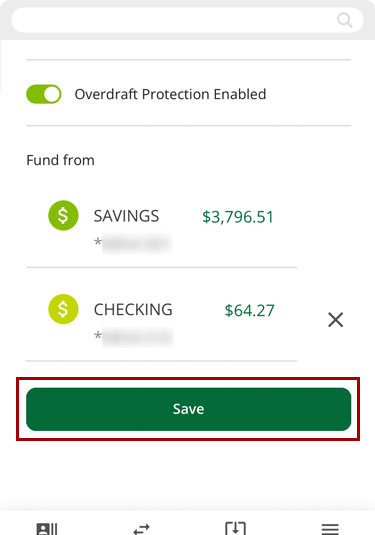
Once you’ve made your selections, tap Save.
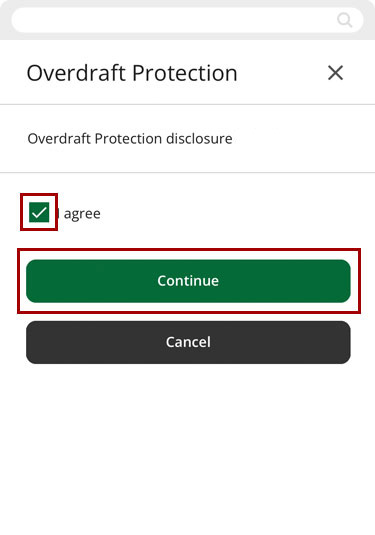
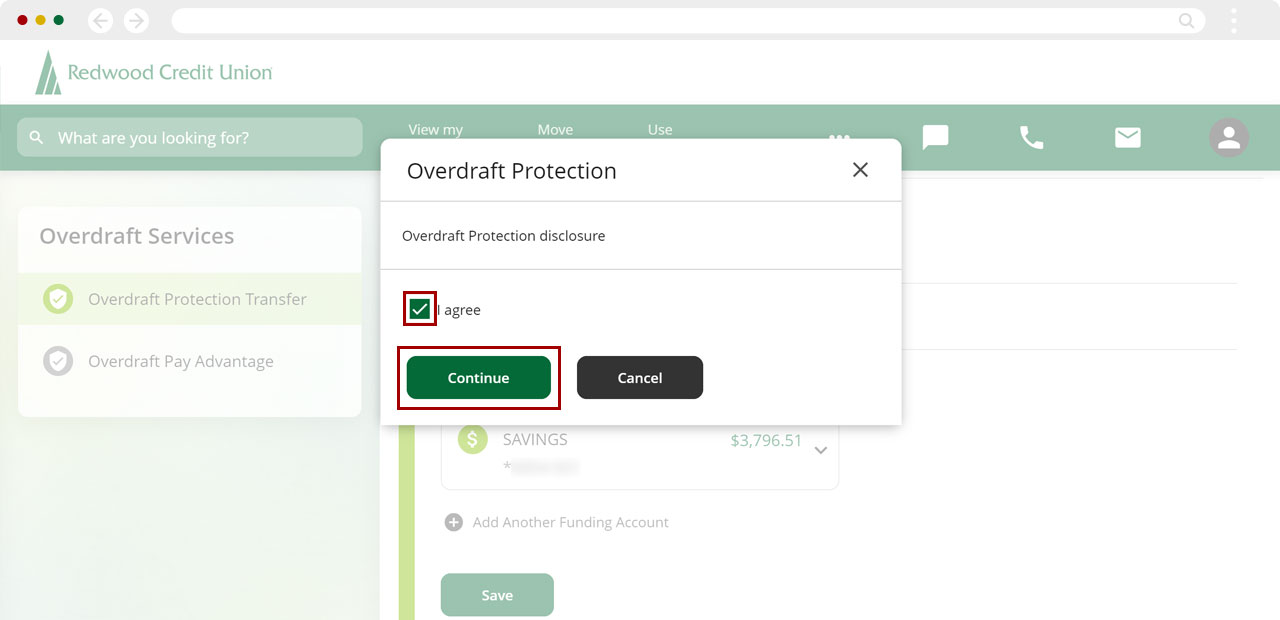
Agree to the disclosure then tap Continue.
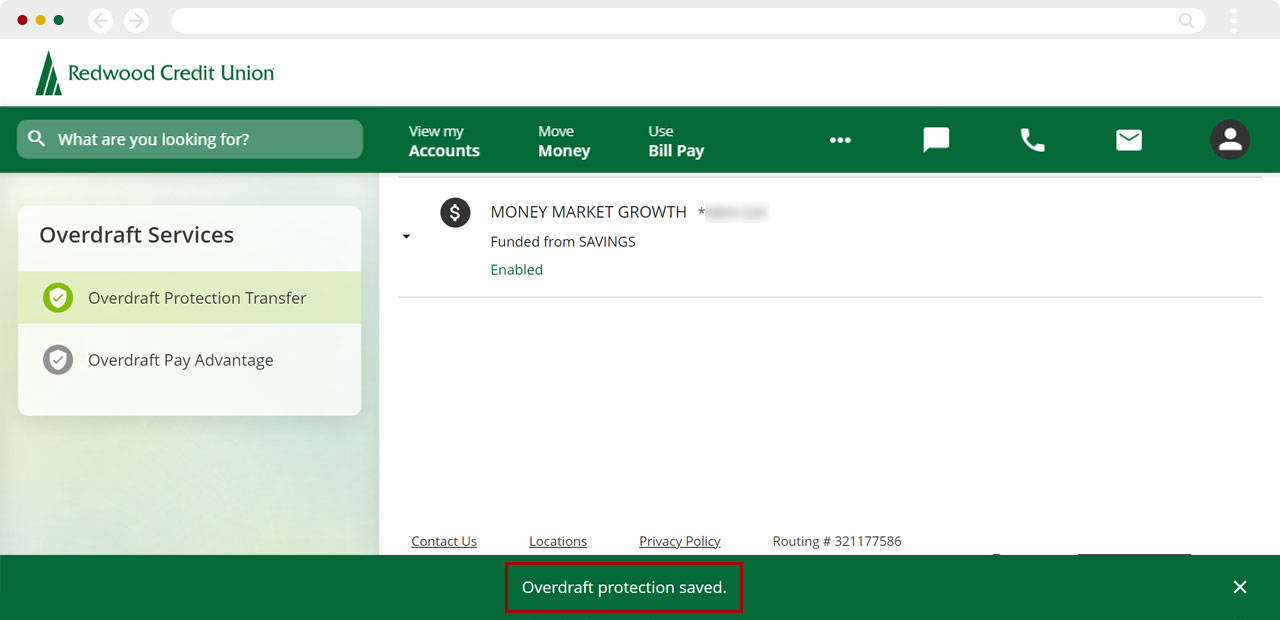
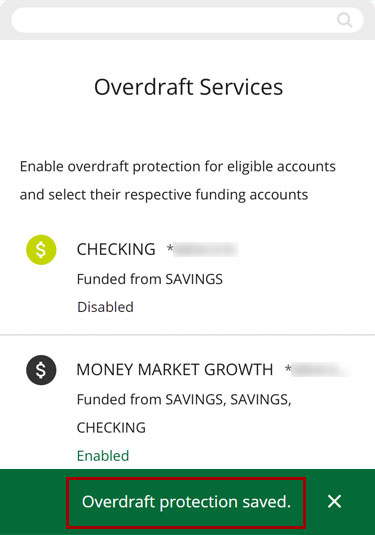
You will see a message confirming your changes have been saved.
Desktop
If you're using a computer, follow the steps below. For mobile devices, go to the mobile steps
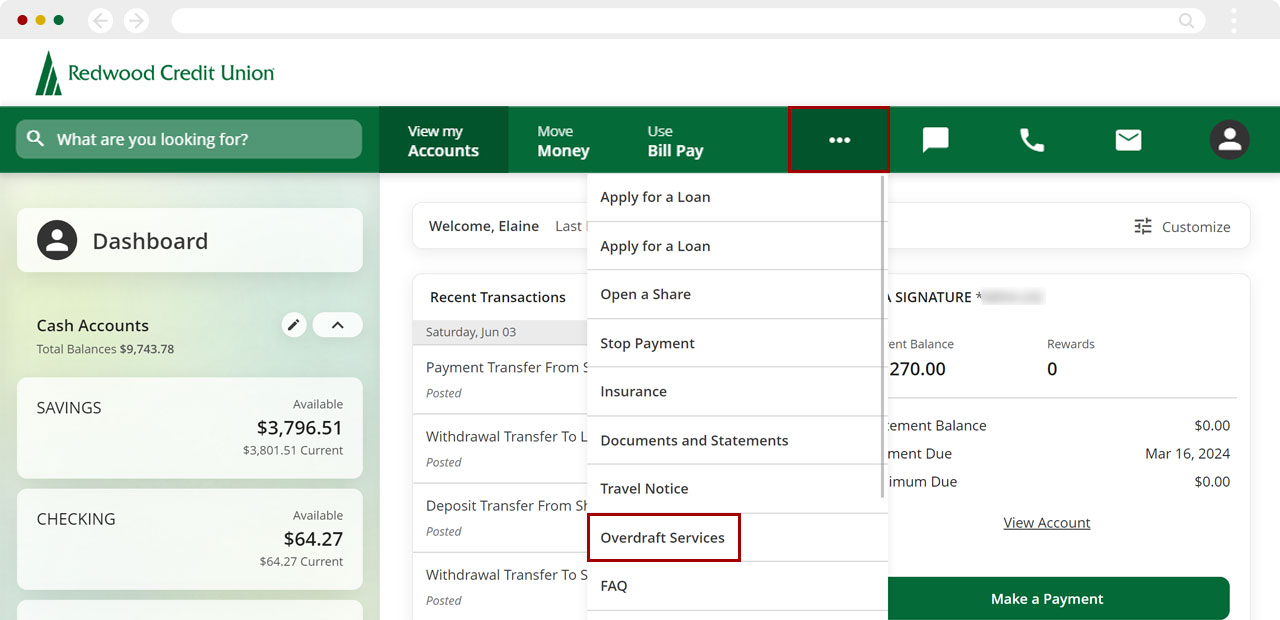
From the dashboard, select the three dots (…) to see the “more” menu, then select Overdraft Services.
Select the checking account you want to cover with overdraft transfers.
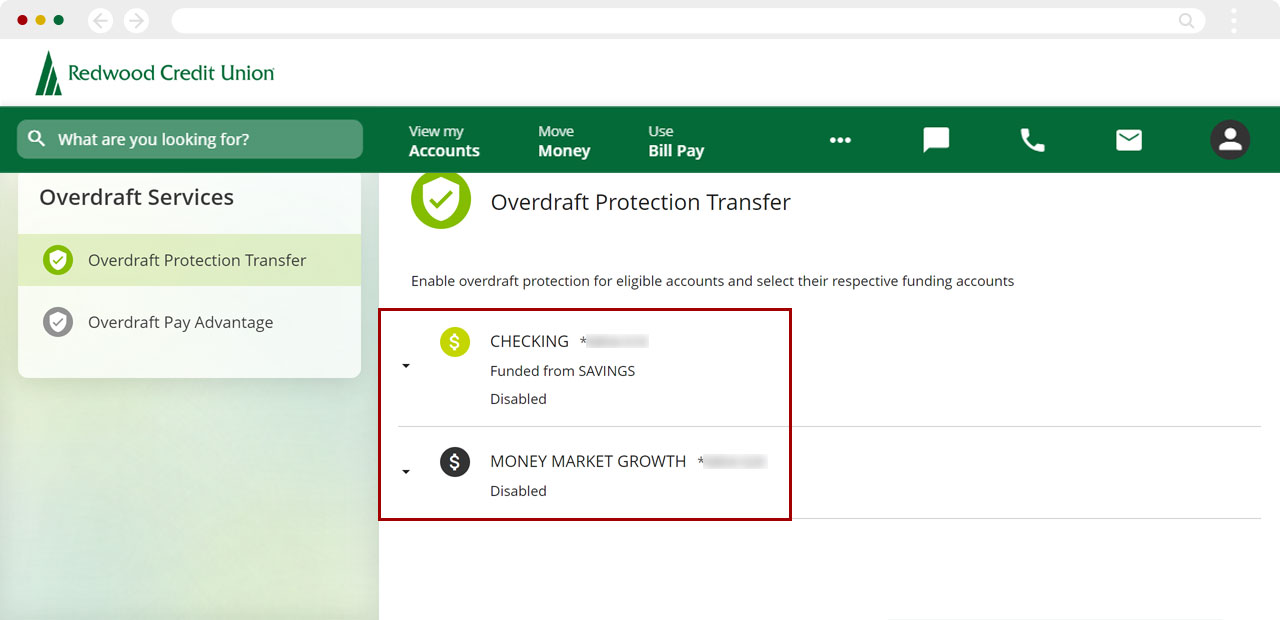
Select the toggle button to enable overdraft protection on that account.
Note: The toggle button should turn green (ON) and say Overdraft Protection Enabled.
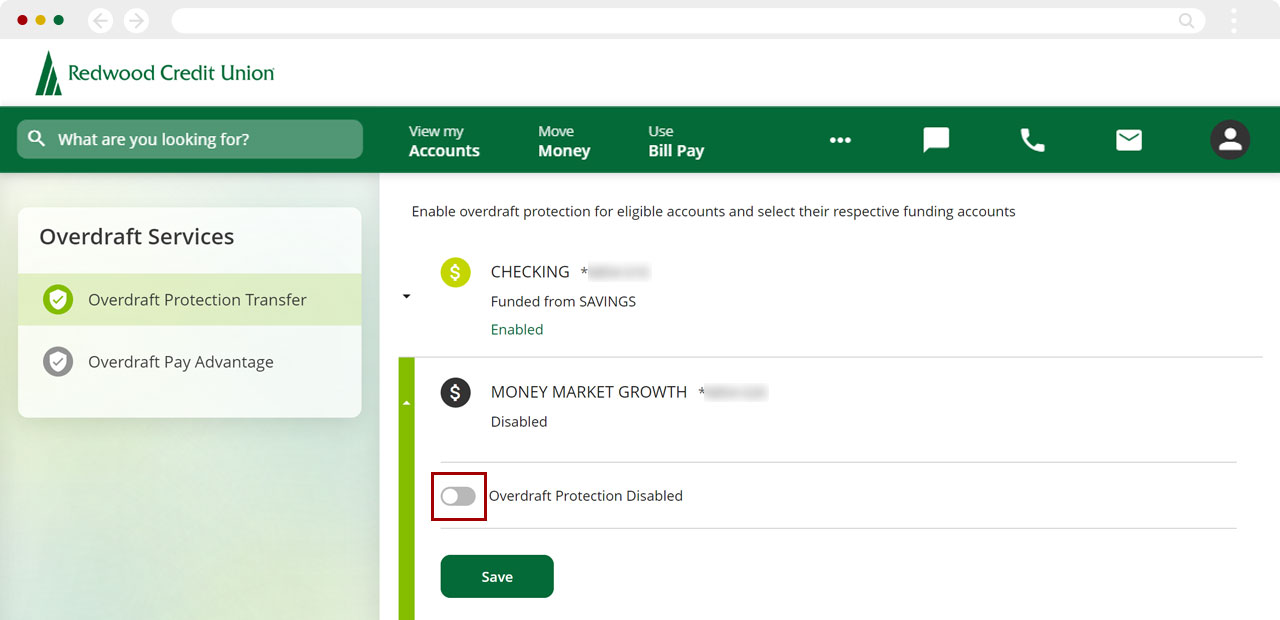
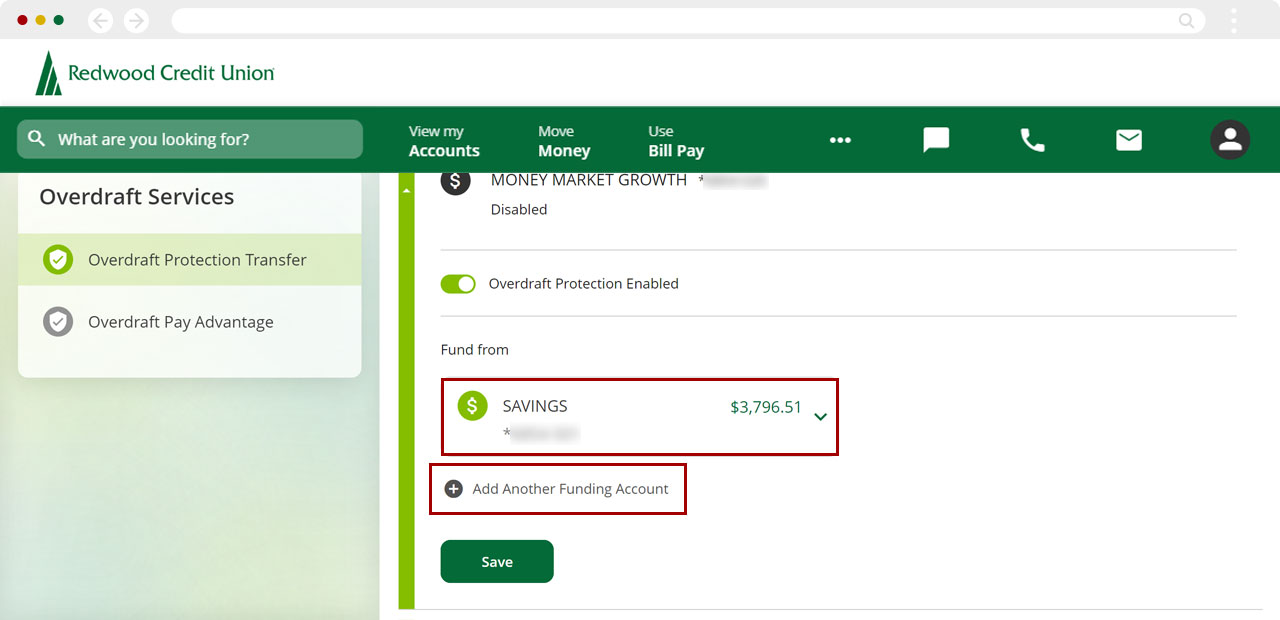
Choose the account or loan you want as your primary overdraft protection source.
You can add more accounts or loans as additional overdraft protection sources by selecting Add Another Funding Account.
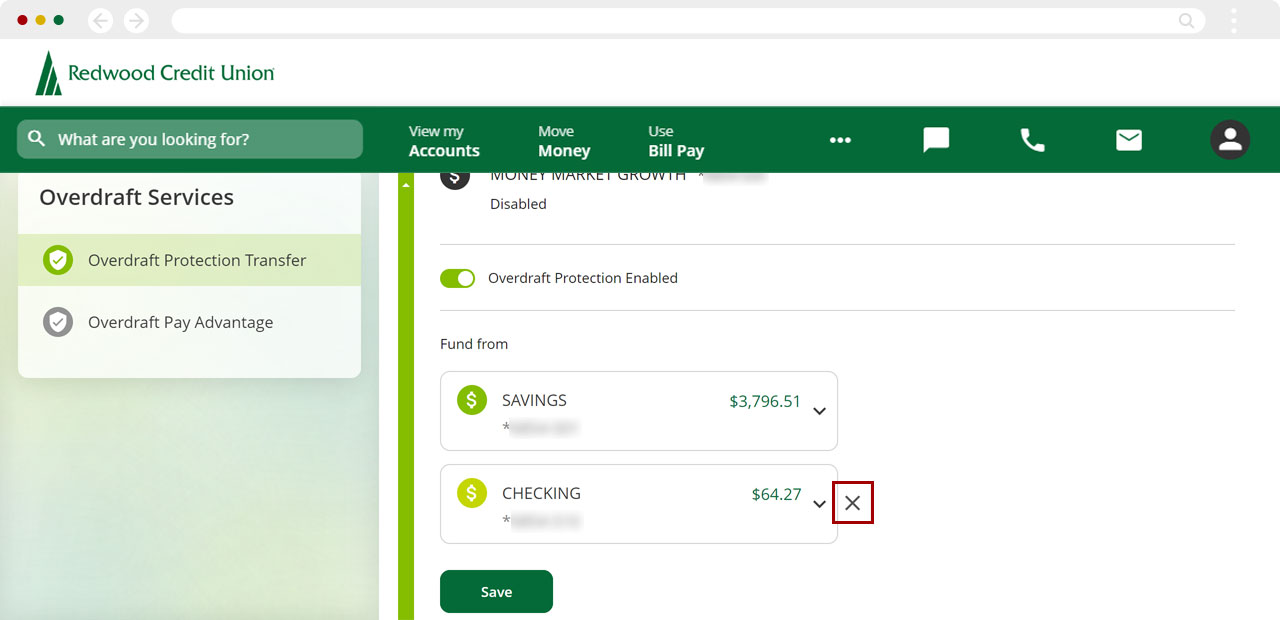
To remove an account as an overdraft protection source, select the X to the right of it.
Once you’ve made your selections, select Save.
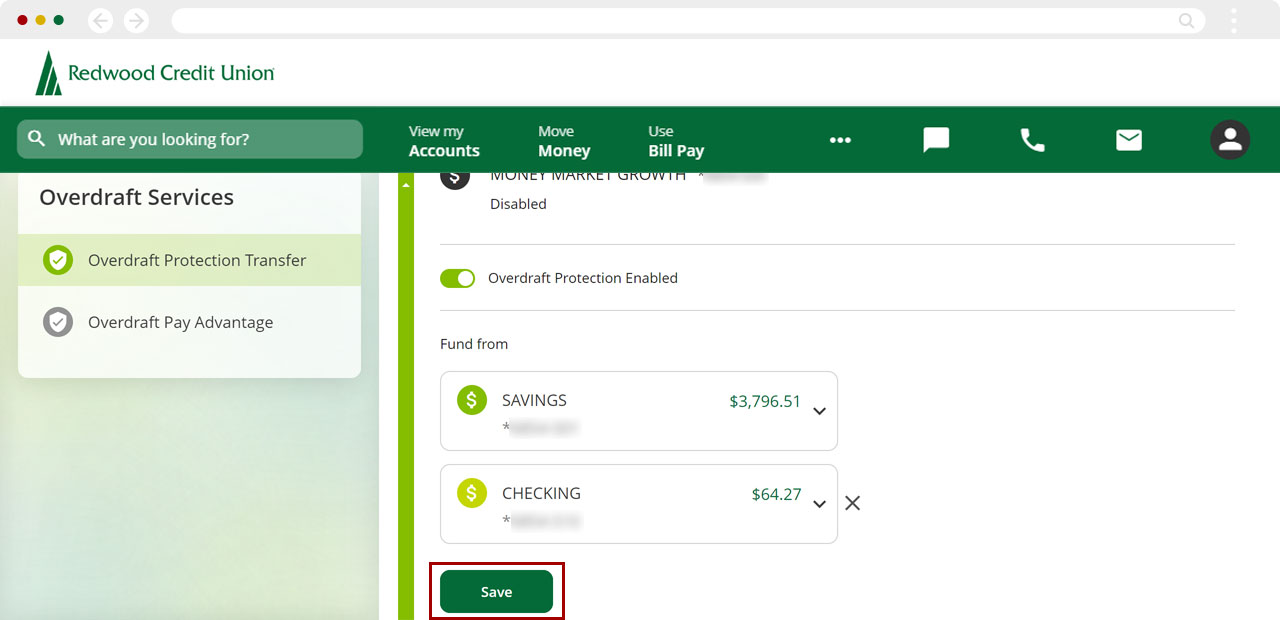
You will be prompted to agree to the disclosure to Continue.
You will see a message confirming your changes have been saved.