How to cancel Visa® autopay in digital banking
Canceling an automatically scheduled payment to your RCU Visa card takes just a few easy steps and can be completed entirely online.
Mobile
If you're using a mobile device, follow the steps below. For computers, go to the desktop steps
From your home screen, select Menu.
.png)
Under Move Money, select New Transfer/Payment.
.png)
Tap Scheduled.
.png)
Select the payment you want to cancel.
.png)
Tap Delete scheduled transfer.
.png)
Verify that you want to cancel your scheduled payment by tapping Delete recurring transfer.
.png)
You will see a message confirming you’ve successfully canceled your scheduled Visa payment.
.png)
Desktop
If you're using a computer, follow the steps below. For mobile devices, go to the mobile steps
From the top menu, select Move Money.
.png)
At left, select Scheduled, then click on the scheduled Visa payment you wish to cancel.
.png)
Click Delete scheduled transfer.
.png)
Verify that you want to cancel your scheduled payment by clicking Delete recurring transfer.
.png)
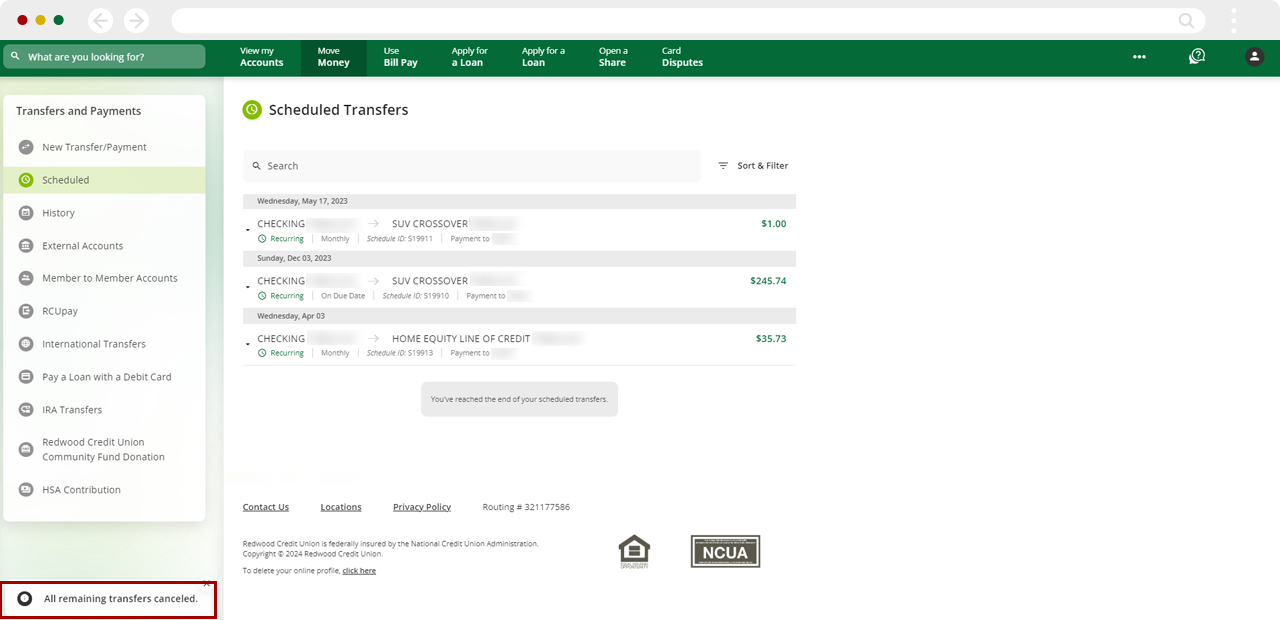
You will see the following message on the next screen, letting you know that you’ve successfully canceled your scheduled Visa payment.