How to set up beneficiaries in digital banking
Manage (add/delete/modify) your account beneficiaries at your convenience through digital banking!
Located under Settings in the mobile Menu or under the profile icon in desktop.
Mobile
If you're using a mobile device, follow the steps below. For computers, go to the desktop steps.
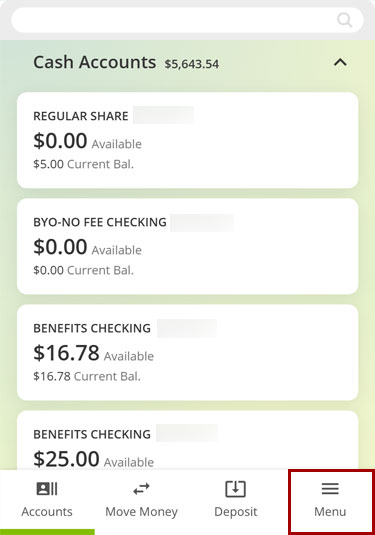
Select Menu at bottom right.
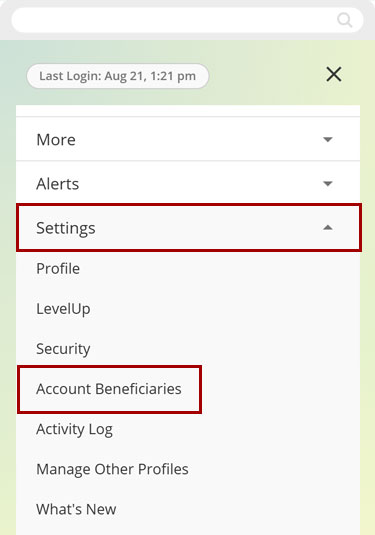
Scroll down to select Settings, then select Account Beneficiaries.
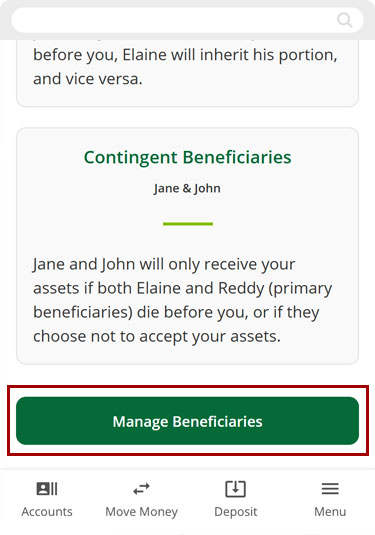
If you’re new to beneficiaries, review the information on the screen, then select Manage Beneficiaries.
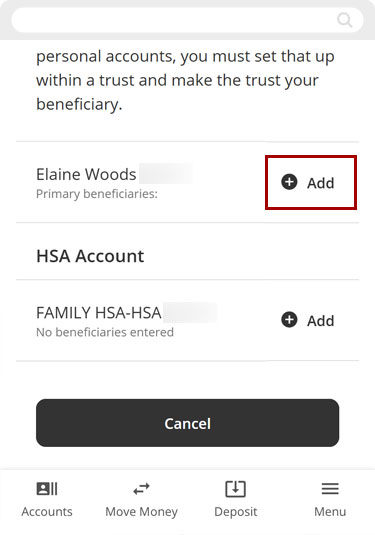
Find the account you want to manage beneficiaries for and select Add.
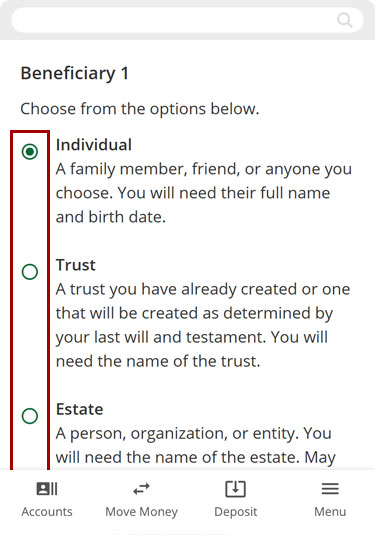
Select the type of primary beneficiary you want to add, then select Continue.
Note: To learn more about each beneficiary type, select the question mark (?) in the white box at top right.
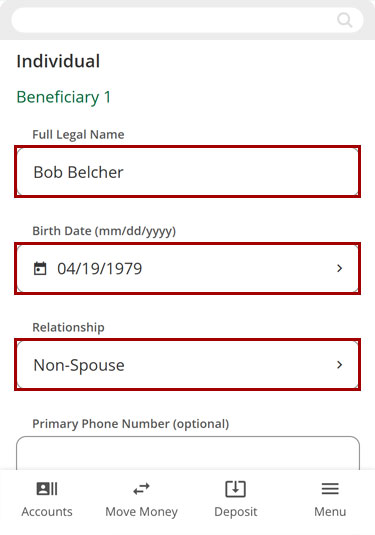
Enter the required information for the beneficiary type you selected, then select Continue.
Note: If you want to add more than one primary beneficiary, select Add another beneficiary at the bottom.
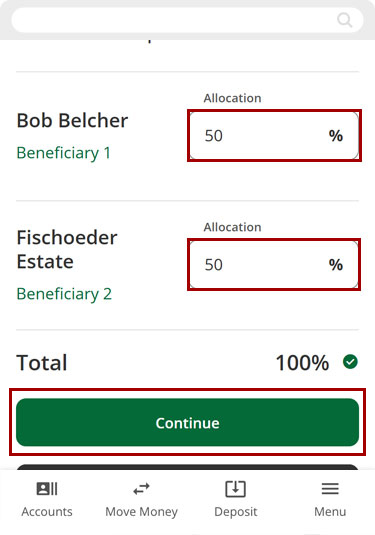
Enter the percentage allocation for each beneficiary, then select Continue.
Note: Only applies if you entered more than one beneficiary.
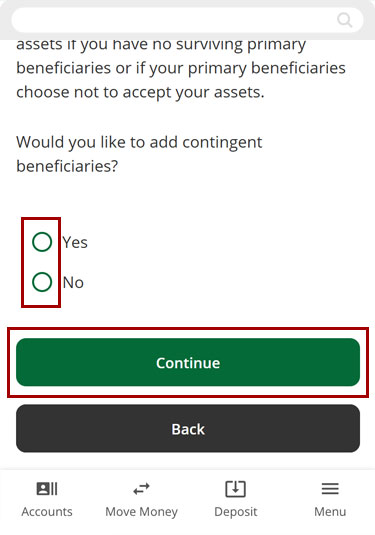
If you want to set up contingent beneficiaries, select Yes. Otherwise, select No and Continue.
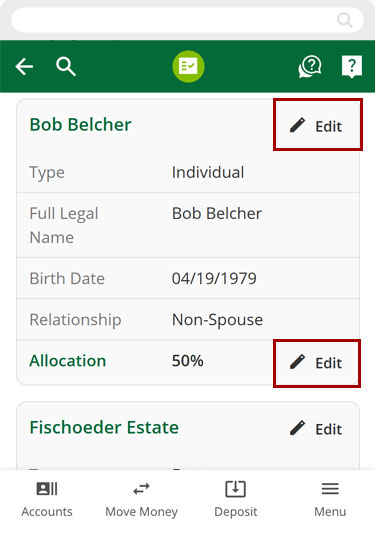
Review your beneficiary selections to confirm all information is accurate. If you need to make changes, select Edit. Otherwise, select Continue
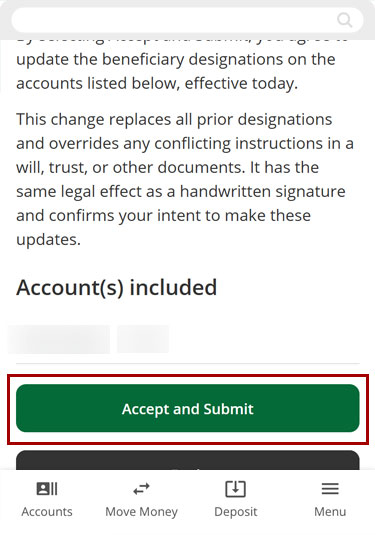
Read the acknowledgment, confirm the account(s) included are correct, then select Accept and Submit.
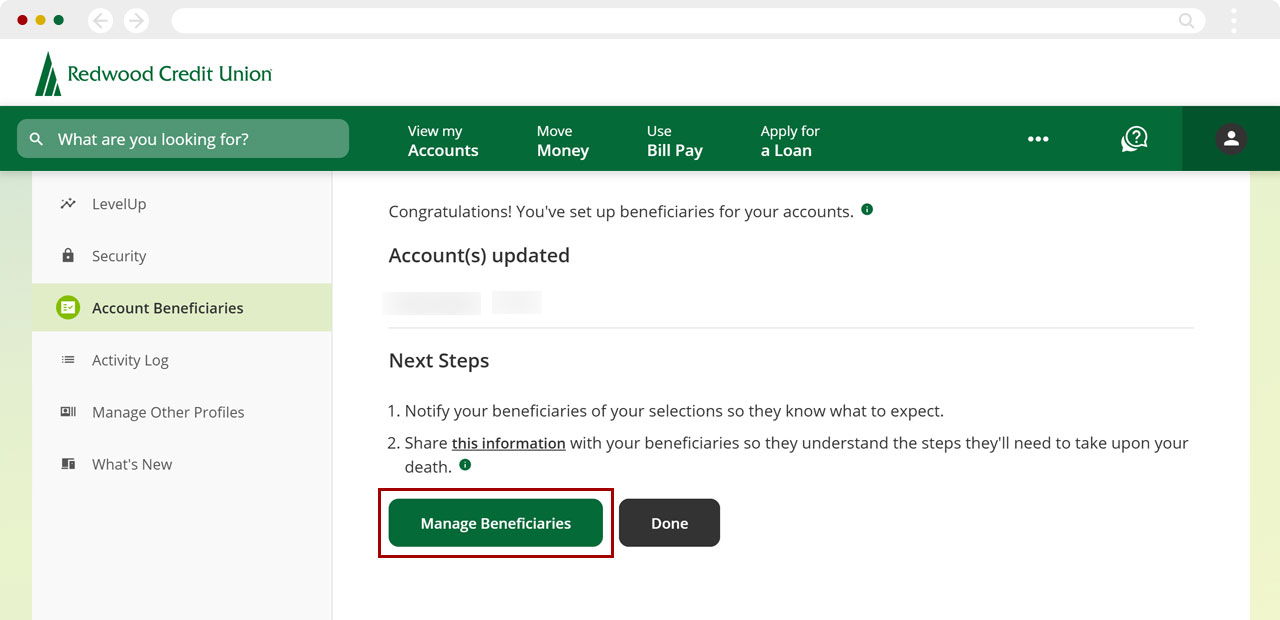
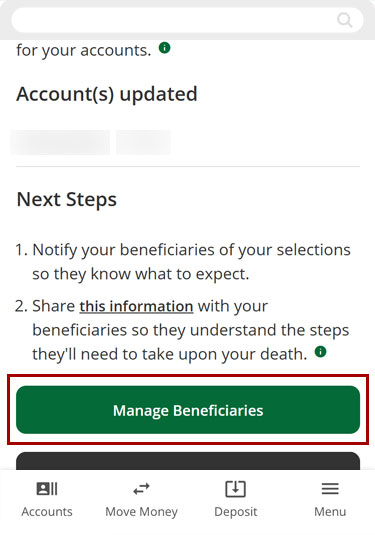
Congratulations! You have set up beneficiaries on your account(s). If you need to set up beneficiaries for other accounts, select Manage Beneficiaries to start the process. Repeat for each account where you want to add beneficiaries.
Important Reminders
- Notify your beneficiaries of your selections so they know what to expect. RCU will not contact beneficiaries on your behalf.
- For trust accounts, beneficiaries cannot be managed through this process. Beneficiaries must be named within the trust documentation itself.
Desktop
If you're using a computer, follow the steps below. For mobile devices, go to the mobile steps.
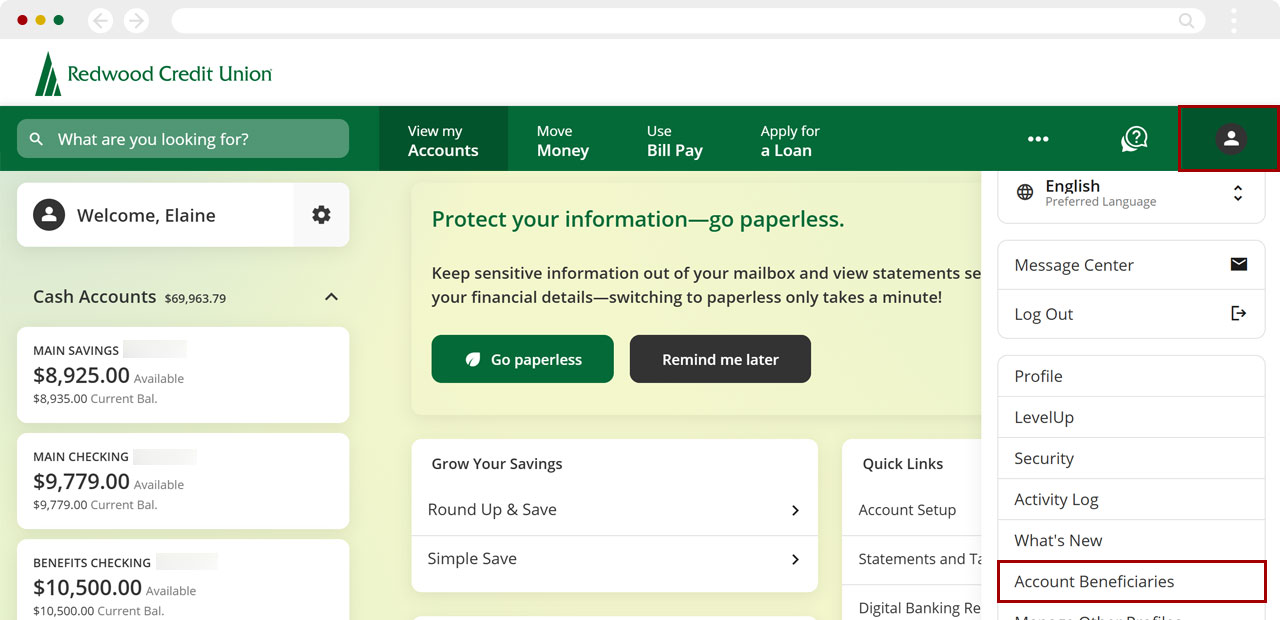
In the top menu bar, select the Profile icon, then select Account Beneficiaries.
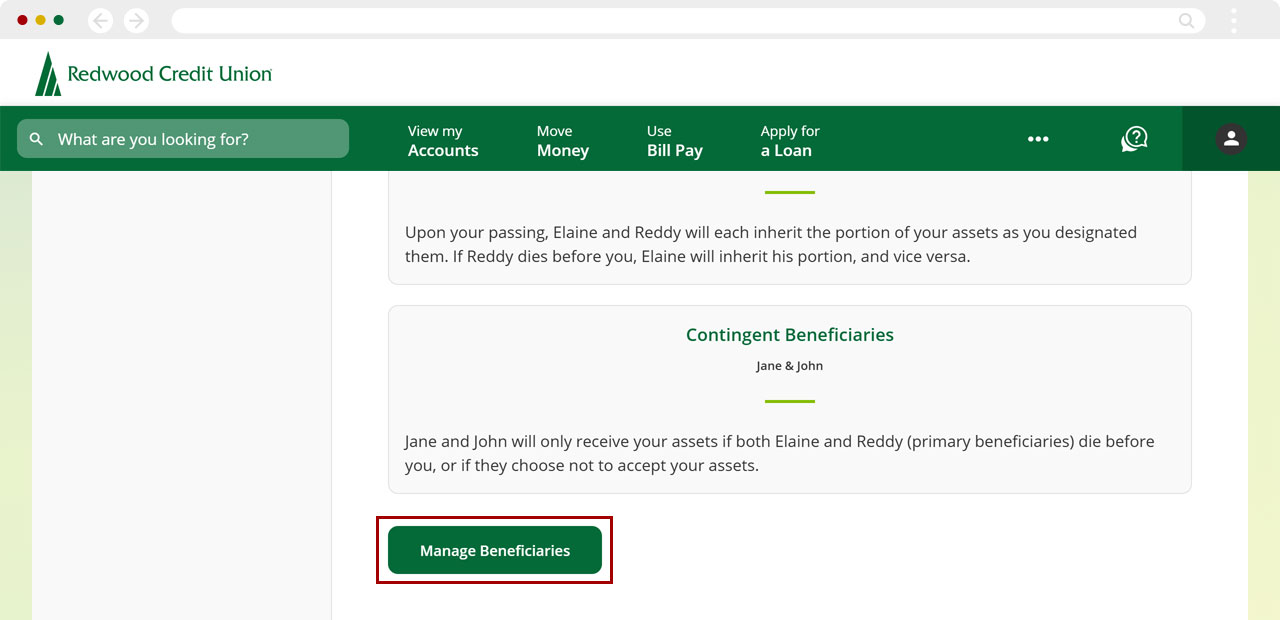
If you’re new to beneficiaries, review the information on the screen, then select Manage Beneficiaries.
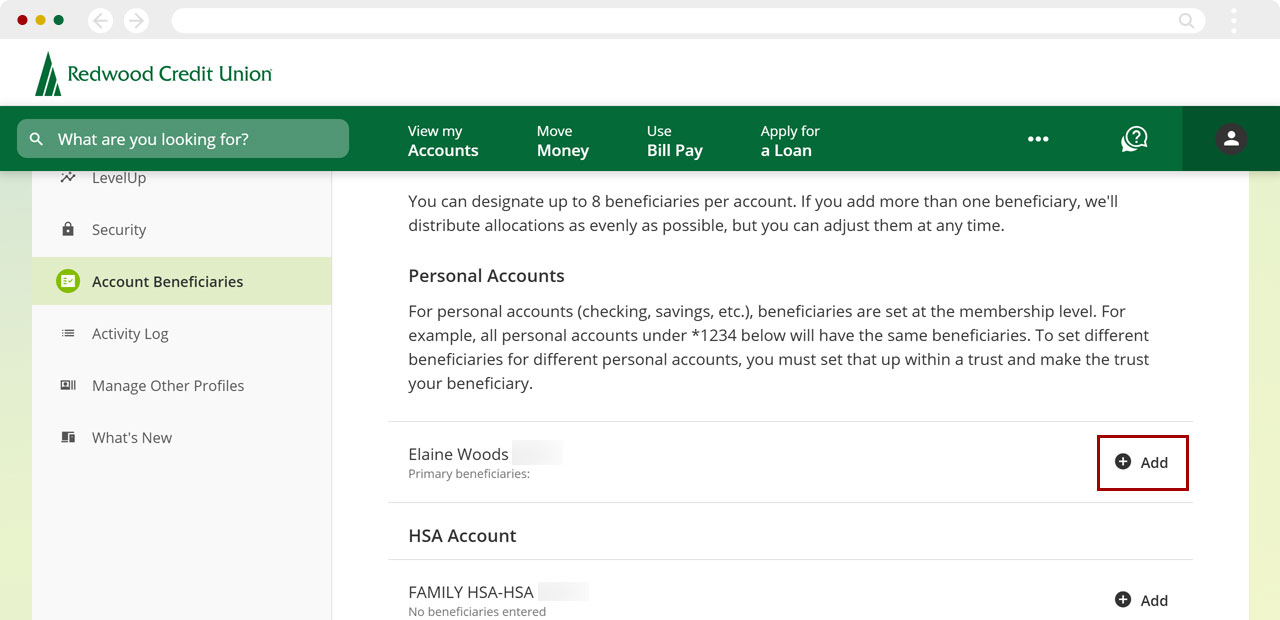
Find the account you want to manage beneficiaries for and select Add.
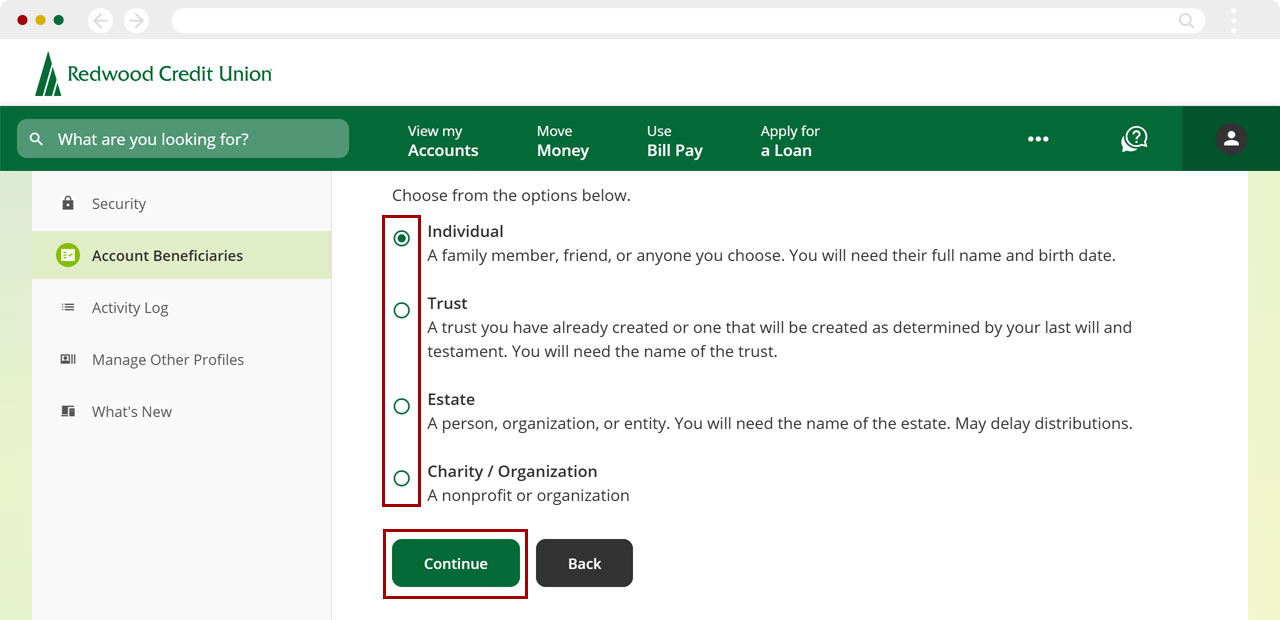
Select the type of primary beneficiary you want to add, then select Continue.
Note: To learn more about each beneficiary type, select Beneficiaires Help at top right.
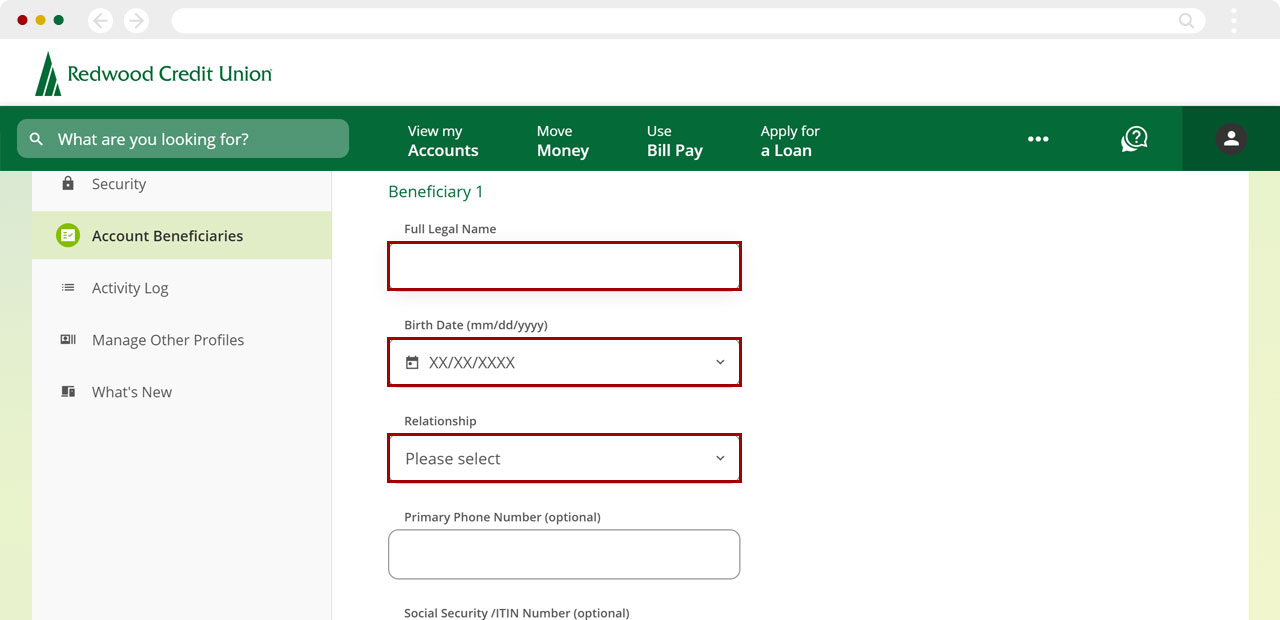
Enter the required information for the beneficiary type you selected, then select Continue.
Note: If you want to add more than one primary beneficiary, select Add another beneficiary at the bottom.
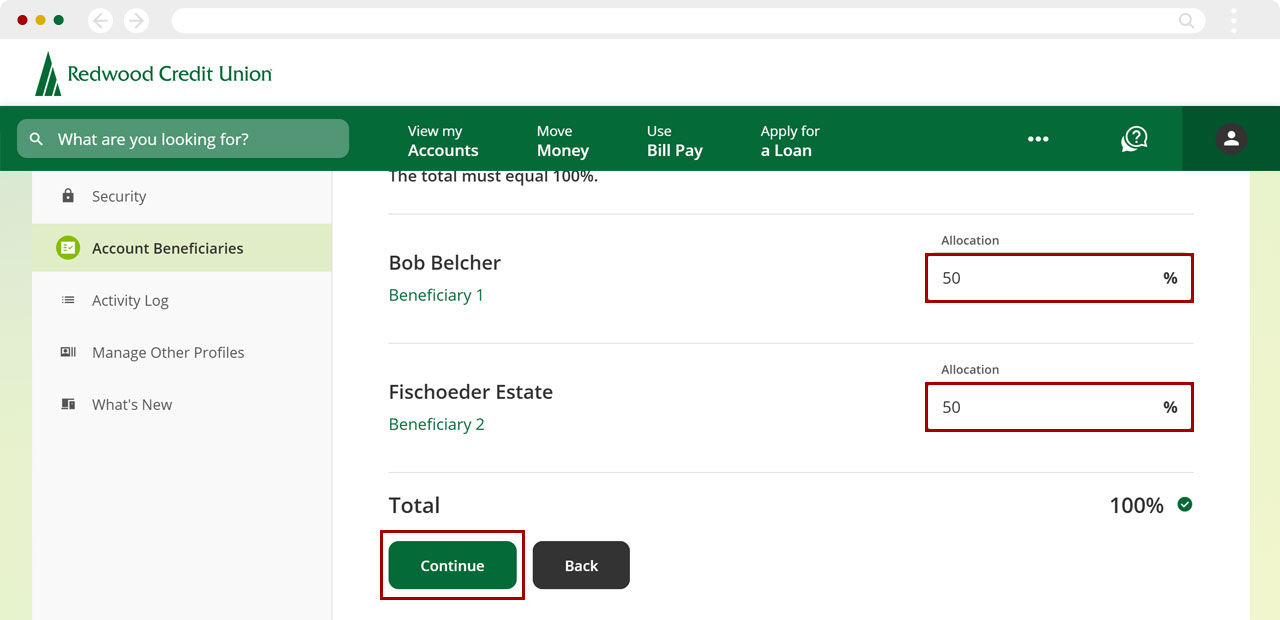
Enter the percentage allocation for each beneficiary, then select Continue.
Note: Only applies if you entered more than one beneficiary.
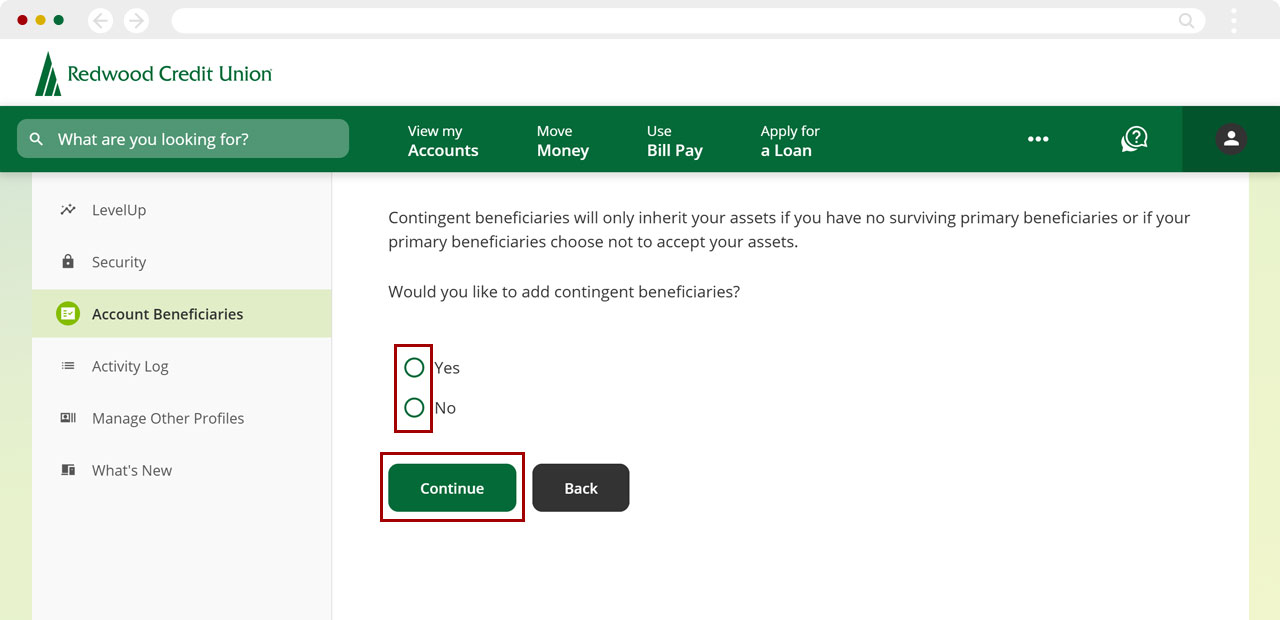
If you want to set up contingent beneficiaries, select Yes. Otherwise, select No and Continue.
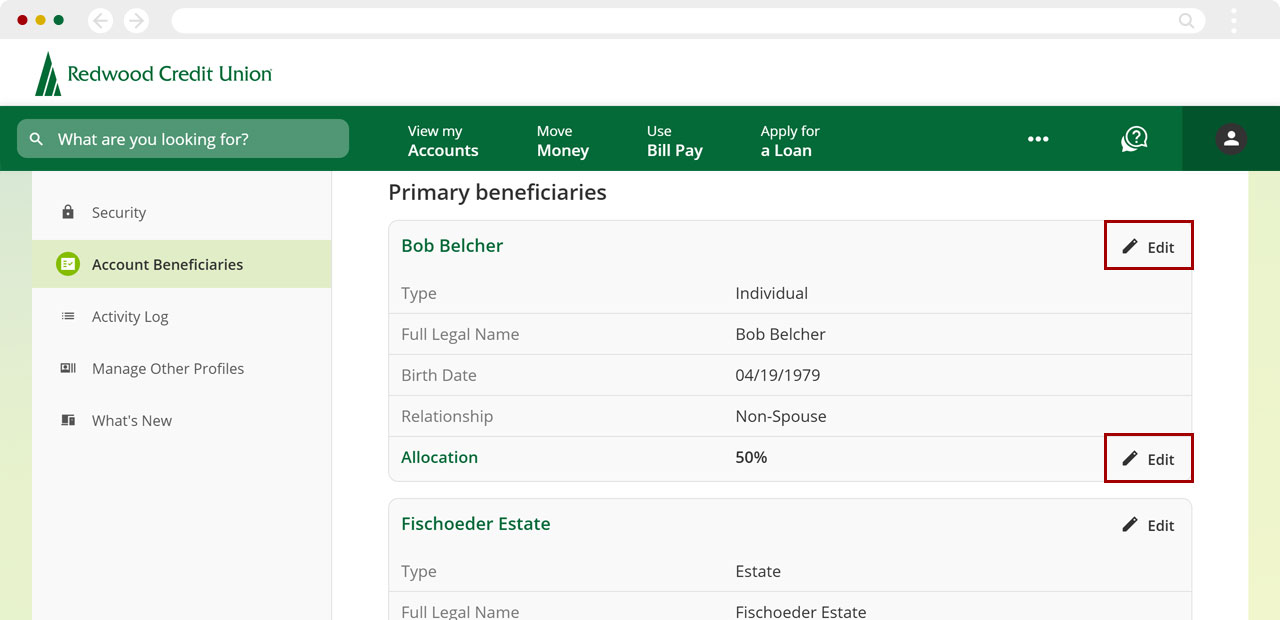
Review your beneficiary selections to confirm all information is accurate. If you need to make changes, select Edit. Otherwise, select Continue.
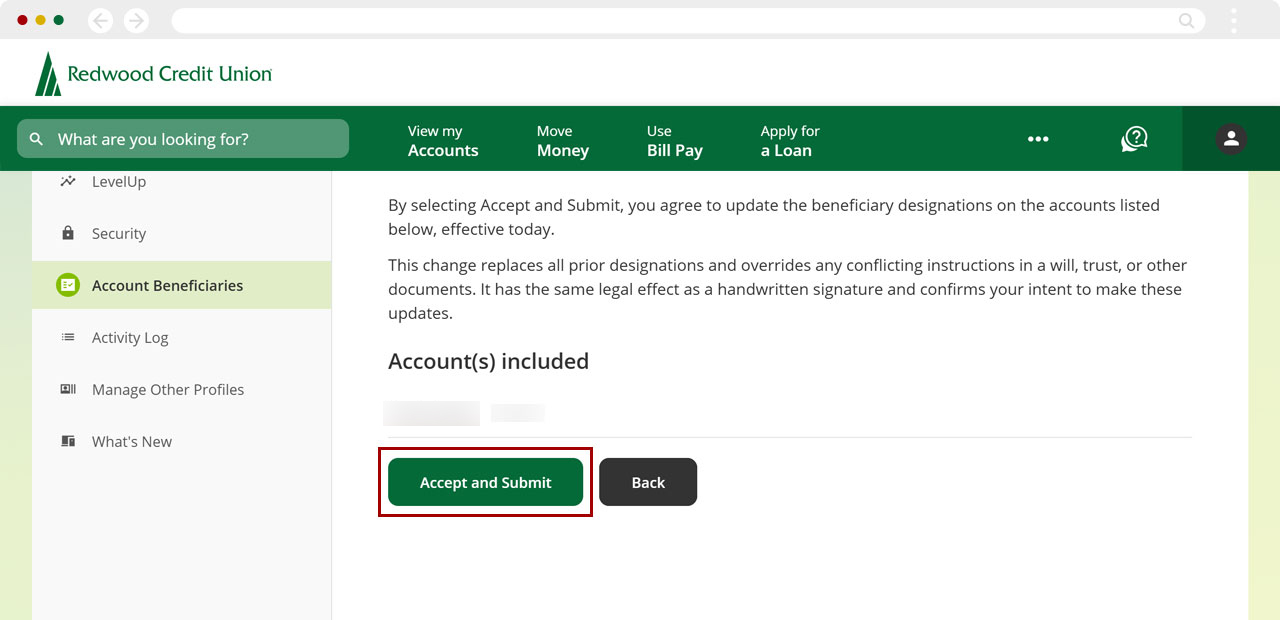
Read the acknowledgment and confirm the account(s) included are correct, then select Accept and Submit.
Congratulations! You have set up beneficiaries on your account(s). If you need to set up beneficiaries for other accounts, select Manage Beneficiaries to start the process. Repeat for each account where you want to add beneficiaries.
Important Reminders
- Notify your beneficiaries of your selections so they know what to expect. RCU will not contact beneficiaries on your behalf.
- For trust accounts, beneficiaries cannot be managed through this process. Beneficiaries must be named within the trust documentation itself.